Master the Nano Banana Pro Wide Shot to instantly break away from generic, tightly cropped images and give your AI generations a professional film layout. With this powerful perspective, you aren’t just taking a picture, you are directing a story. Stepping the virtual camera back unlocks an incredible sense of scale and spatial depth, balancing your character perfectly within a breathtaking, cinematic environment.
What’s inside this guide:
- Using the Right Keywords for Wide Shots: The best keywords to use for wide shots.
- Why Extending Your Prompts Create Better Camera Angles: How details stop AI mistakes.
- FAQ: How to Fix Wide Shot Mistakes: Quick fixes for unwanted closeups and flat images.
- Storytelling and Camera Movement Tips: When to use this shot and video motion tricks.
- Explore More Nano Banana Pro Camera Angles: Links to more camera angle guides.
1. Using the Right Keywords for Wide Shots
Think of your prompt words as a guide that places your camera exactly where you want it. To create your Nano Banana Pro Wide Shot, you can either use the keyword by itself or write an extended prompt that describes the full scene.
Basic Prompt with only keyword
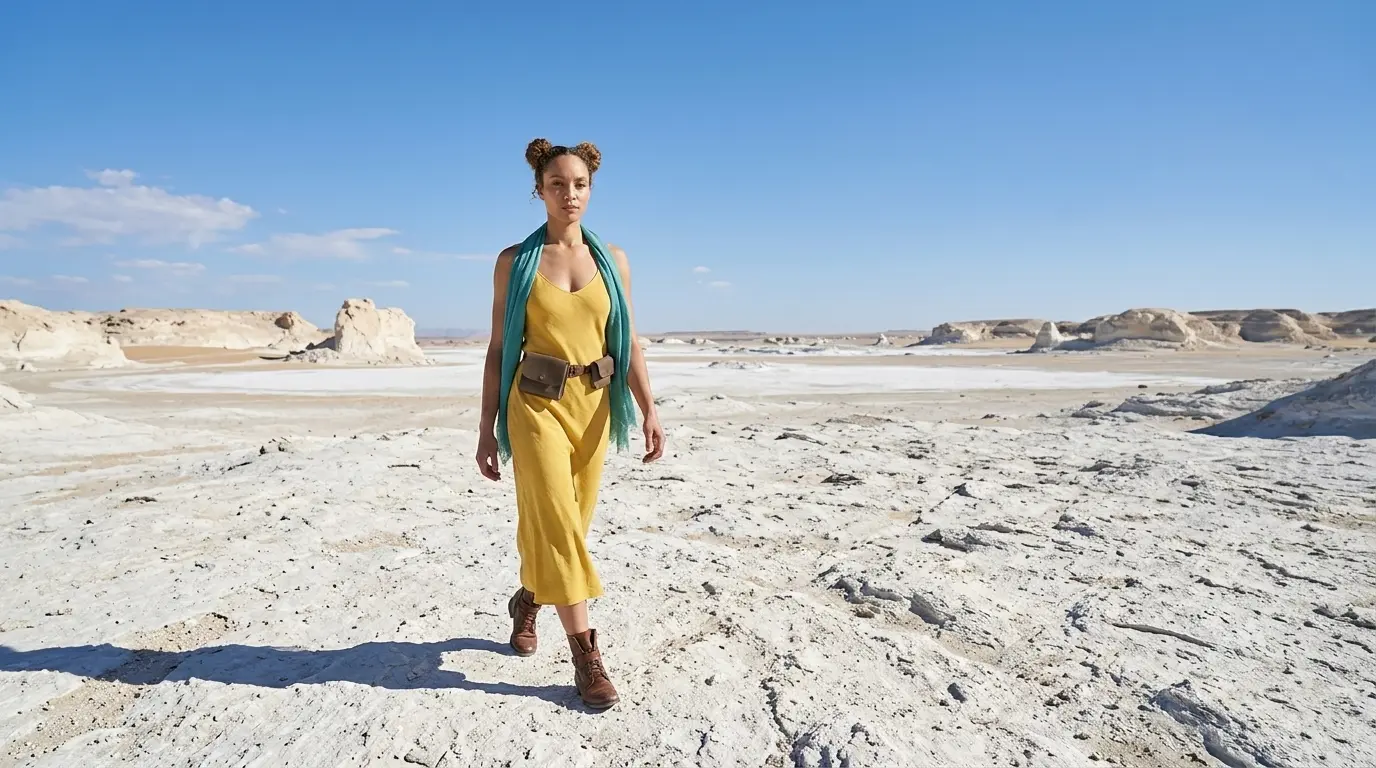
Wide shot of this woman in a white rocky desert
Extended Prompt
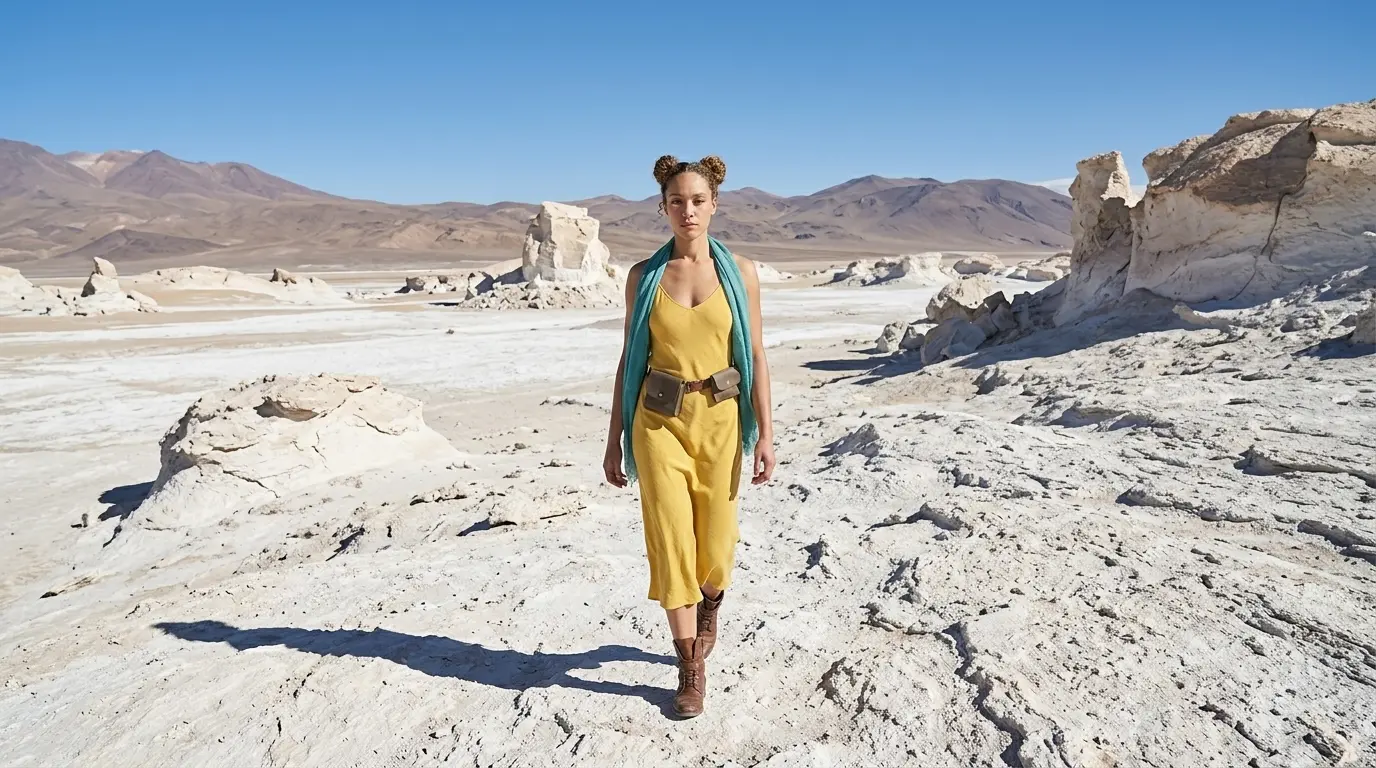
Establishing shot of this woman in a white rocky desert
In this example, Nano Banana Pro already understands the wide shot keyword quite well. But this is not always the case with every camera angle, scene, or AI image model. That is why we also show additional keywords and extended prompt options, so you have more control when the basic keyword is not enough.
Additional Keywords to extend your prompt
establishing shot
surrounding landscape
vast white desert
distanct mountains
sprawling cityscape
surrounding landscape
vast white desert
distanct mountains
sprawling cityscape
💡
Pro Tip: While Nano Banana reads your entire prompt for context, placing camera keywords early prevents them from getting diluted by long description details later in your text!
2. Why Extending Your Prompts Create Better Camera Angles
Both styles tell the AI where to put the camera, but using only one keyword leaves too much up to guesswork.
To get a perfect Nano Banana Pro Wide Shot, describe the space around your character to lock the camera in place:
- The Only-Keyword Prompt: Writing just “Wide shot” creates a clean image, but you let the AI decide everything else for you.
- The Extended Prompt: Adding specific details like “vast white desert” forces the AI to step the camera back. This locks in your perspective and reveals the ground and wider landscape.
Additional Keywords
Why It Works
establishing shot
Tells the AI to pull the camera far back to show the whole scene.
surrounding landscape
Forces the AI to focus on the environment around the subject.
vast white desert
Uses the word “vast” to stop the AI from zooming in.
distant mountains
Adds background depth to push the horizon further away.
sprawling cityscape
Commands the AI to widen its lens to fit a massive background.
3. FAQ: How to Fix High Angle Mistakes
4. Storytelling and Camera Movement Tips
A wide shot captures your subject from head to toe, balancing character action with the setting to tell a story through scale and environment.
When generating video, use these motion keywords to maximize your camera control:
- Slow tracking shot: Moves along with the character, balancing their action perfectly inside the space.
- Wide shot pan away: Rotates the lens toward the background, revealing a massive setting that dominates the frame.
- Cinematic push-in: Moves slightly forward, drawing focus to the character without losing the surrounding landscape.
5. Explore More Nano Banana Pro Camera Angles
Ready to master more cinematic camera perspectives? Explore our other quick prompting guides to elevate your AI generations!
Link to: Nano Banana Pro Full Body Shot: Master AI Character Framing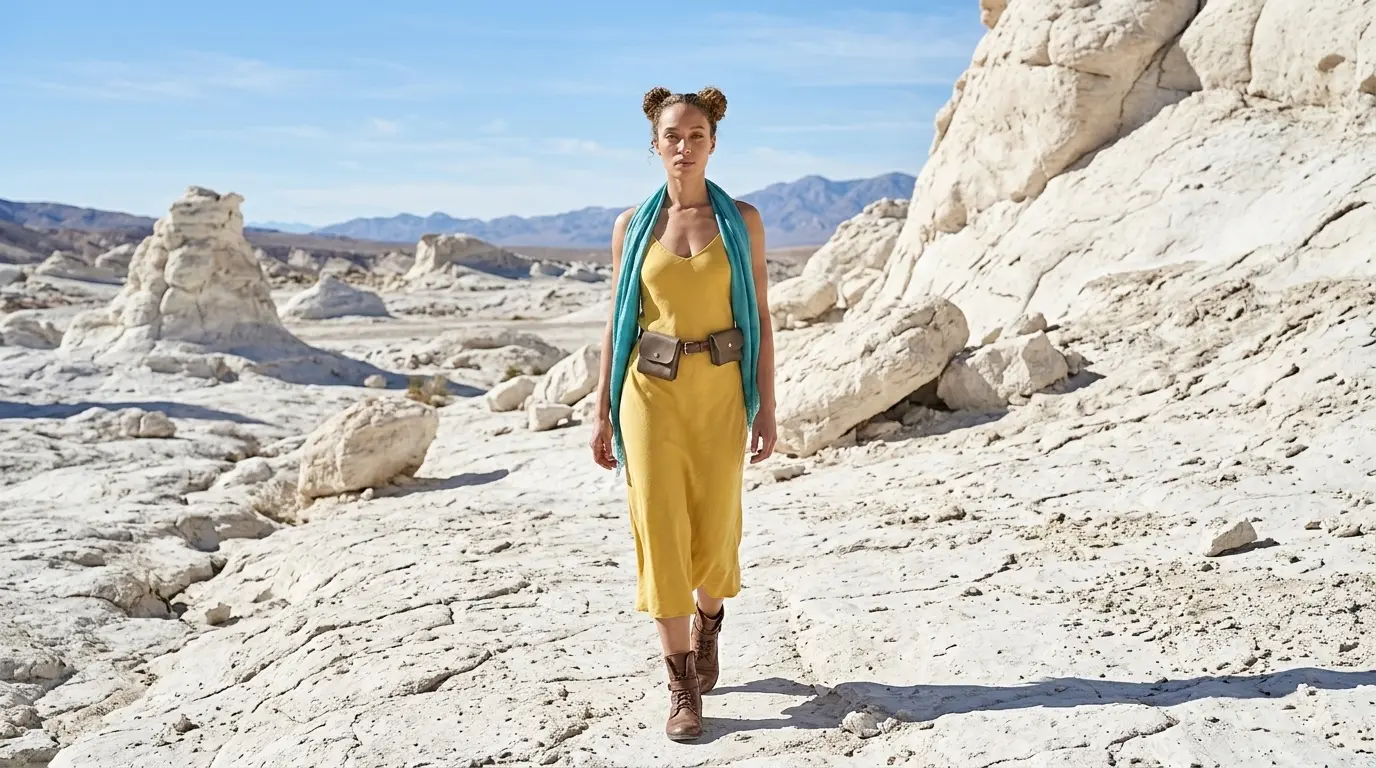
Capture Complete Outfits Using Full Body Shots
Never cut off feet or heads again. Learn how the right nano banana camera control prompts can give a perfectly framed head-to-toe style.
Link to: Nano Banana Pro Extreme Wide Shot: Master Epic Scale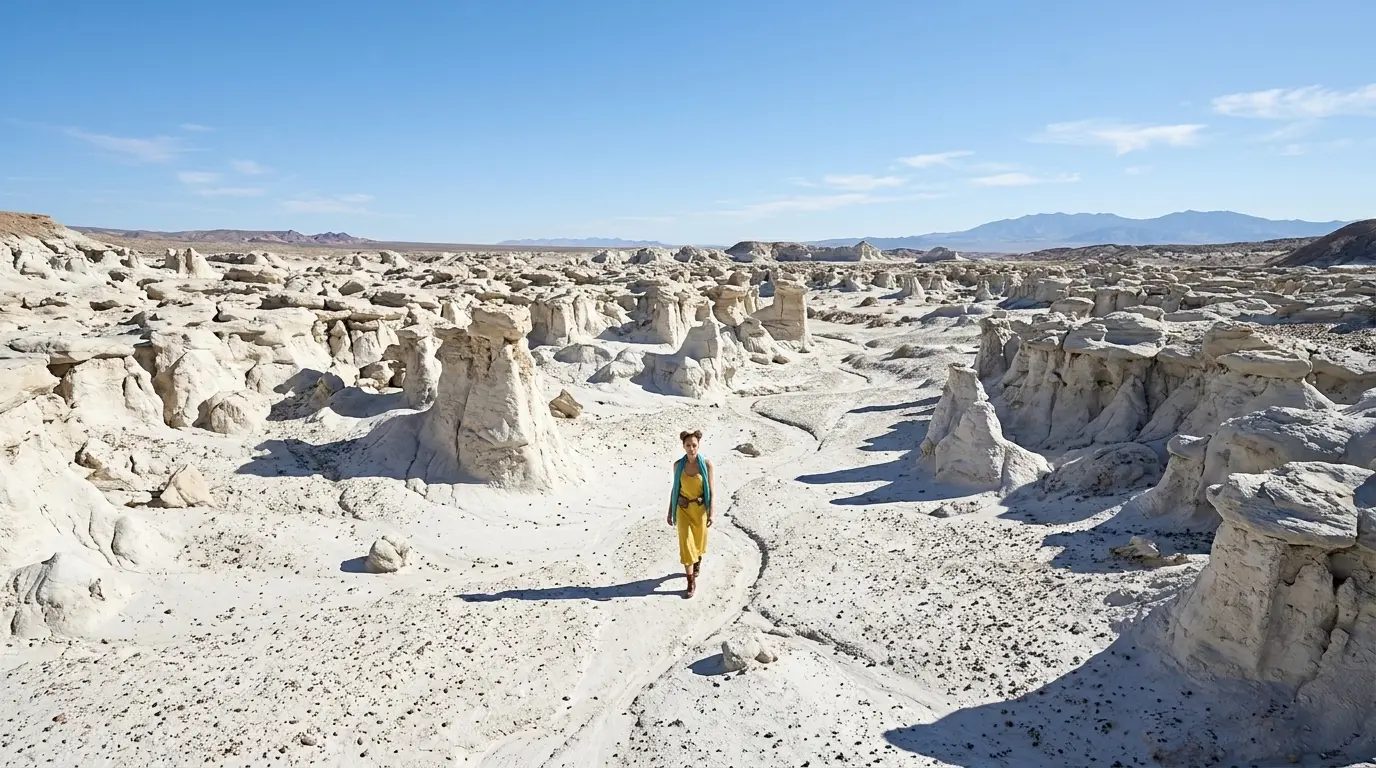
Build Massive Scale with Extreme Wide Shots
Learn the tricks to control your Nano Banana camera angle prompts to shrink your subject and emphasize grand, sweeping landscapes.
Link to: Nano Banana Pro Camera Angles: The Ultimate Guide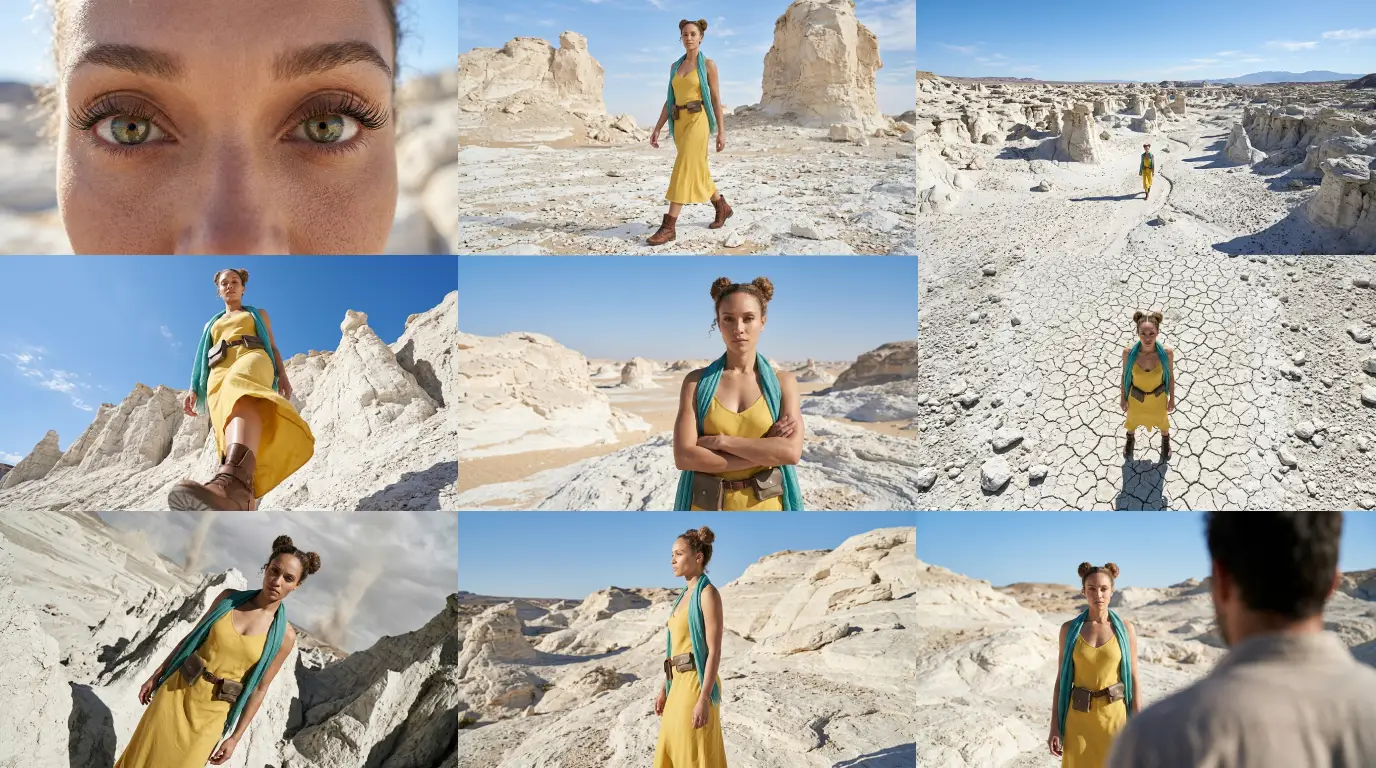
Complete Guide to Camera Angles
Jump back to our full list of Nano Banana Pro prompt tutorials and cinematic camera angles.