The Nano Banana Pro Extreme Wide Shot instantly breaks away from crowded, zoomed-in frames by pulling your camera way back into the horizon. This cinematic angle turns massive environments into the main character, making your subject look beautifully tiny against a giant world. It is your secret weapon for capturing pure isolation, epic scale, and breathtaking scenery that commands absolute attention.
What’s inside this guide:
- Using the Right Keywords for Extreme Wide Shots: The best keywords to use for epic landscapes.
- Why Extending Your Prompts Create Better Camera Angles: How details stop AI mistakes.
- FAQ: How to Fix Extreme Wide Shot Mistakes: Quick fixes for unwanted closeups and crowded frames.
- Storytelling and Camera Movement Tips: When to use this shot and video motion tricks.
- Explore More Nano Banana Pro Camera Angles: Links to more camera angle guides.
1. Using the Right Keywords for High Angle Shots
Think of your prompt words as a guide that places your camera exactly where you want it. To create your image, you can either use the keyword by itself or write an extended prompt that describes the full scene.
Basic Prompt with only keyword
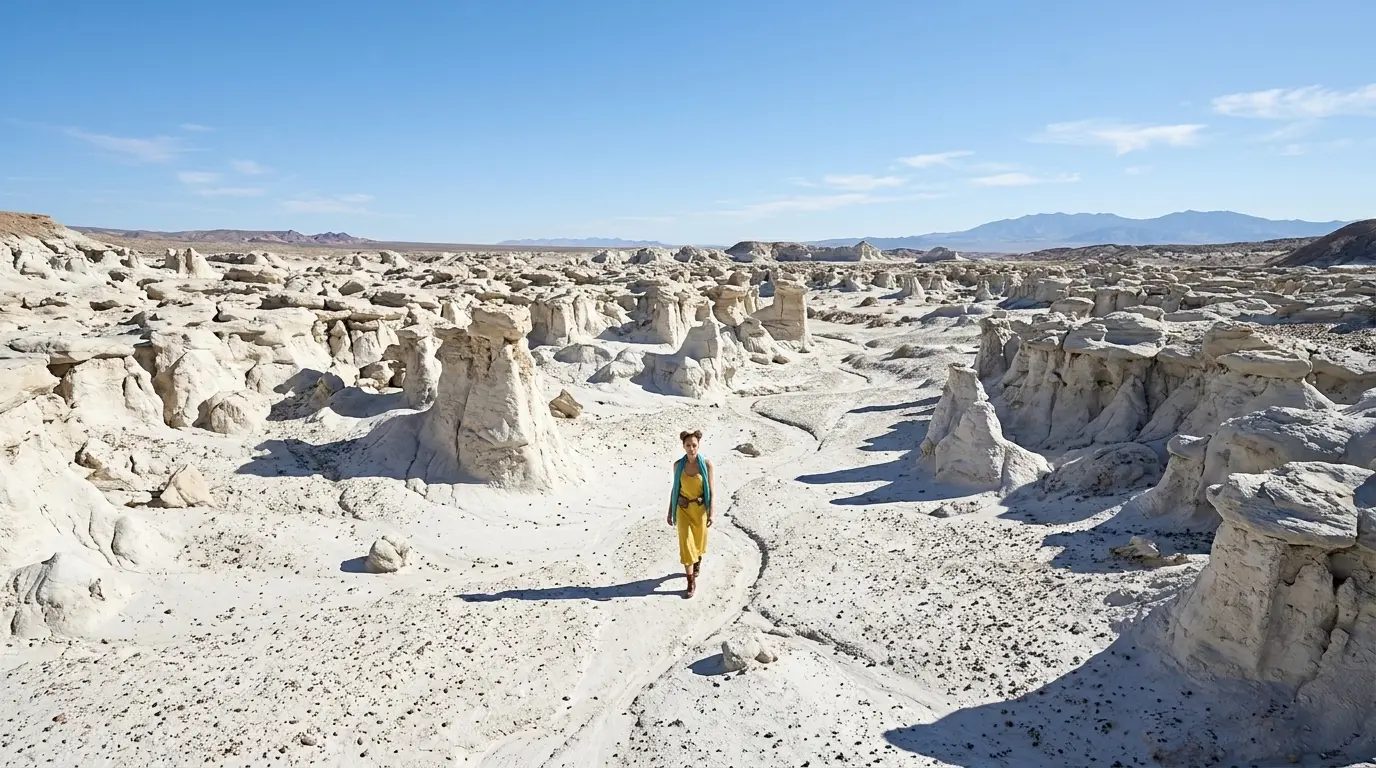
Extreme wide shot of this woman in a white rocky desert
Extended Prompt
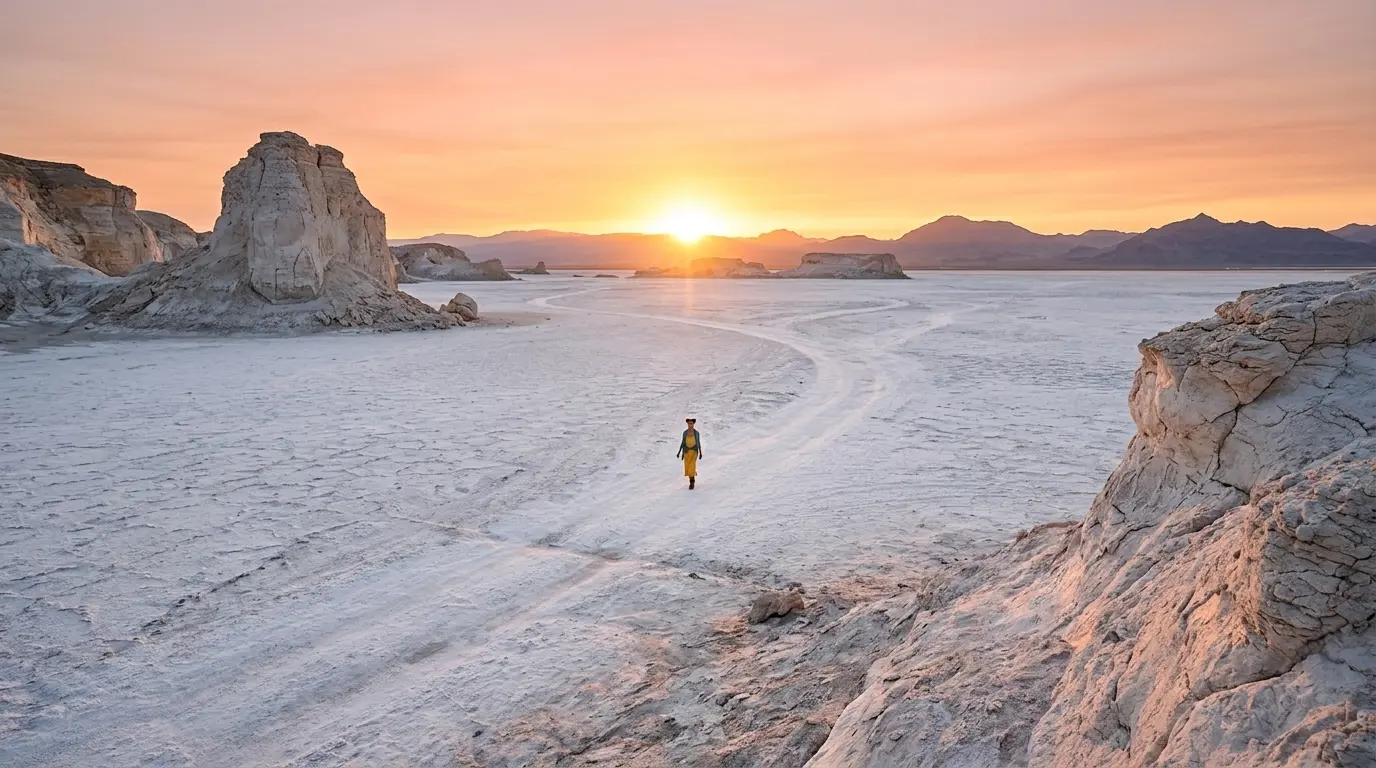
Extreme wide shot of this tiny woman in a vast white rocky desert during sunset
In this example, Nano Banana Pro already understands the extreme wide shot keyword quite well. But this is not always the case with every camera angle, scene, or AI image model. That is why we also show additional keywords and extended prompt options, so you have more control when the basic keyword is not enough.
Additional Keywords to extend your prompt
in a vast white rocky desert
tiny woman
during sunset
with huge mountains at the back
tiny woman
during sunset
with huge mountains at the back
💡
Pro Tip: While Nano Banana reads your entire prompt for context, placing camera keywords early prevents them from getting diluted by long description details later in your text!
2. Why Extending Your Prompts Create Better Camera Angles
Using only one keyword leaves too much up to guesswork. To get the exact look you want, describe the specific environmental elements or tiny subject boundaries to lock the camera far away:
- The Only-Keyword Prompt: Writing just “Extreme wide shot” creates a clean image, but you let the AI decide the framing, distance, and background details for you.
- The Extended Prompt: Adding specific details like “a tiny silhouette” or describing a character “swallowed by a vast rocky desert” forces the AI to lock the lens at a massive distance. This locks in your perspective and stops the camera from accidentally zooming in into a close-up or medium view.
Additional Keywords
Why It Works
in a vast white rocky desert
Gives the AI a huge background to build.
tiny woman
Forces the camera to stay far away.
during sunset
Forces the camera back to show the sky.
with huge mountains at the back
Makes the environment look epic and massive.
3. FAQ: How to Fix Extreme Wide Shot Mistakes
4. Storytelling and Camera Movement Tips
An extreme wide shot shows your subject from a massive distance. This creates an epic, grand view that makes the environment the main story while showing the tiny scale of your subject. When making videos, use these simple motion words to control your camera:
- Extreme wide shot drone flyover: Moves the camera smoothly high through the air to reveal the massive scale of the landscape.
- Extreme wide shot slow pan: Moves the camera slowly from side to side to showcase the entire horizon and vast environment.
- Backward tracking extreme wide shot: Pulls the camera further and further away to make the subject look tiny and swallowed by the world.
5. Explore More Nano Banana Pro Camera Angles
Ready to master more cinematic camera perspectives? Explore our other quick prompting guides to elevate your AI generations!
Link to: Nano Banana Pro Wide Shot: Control the Scene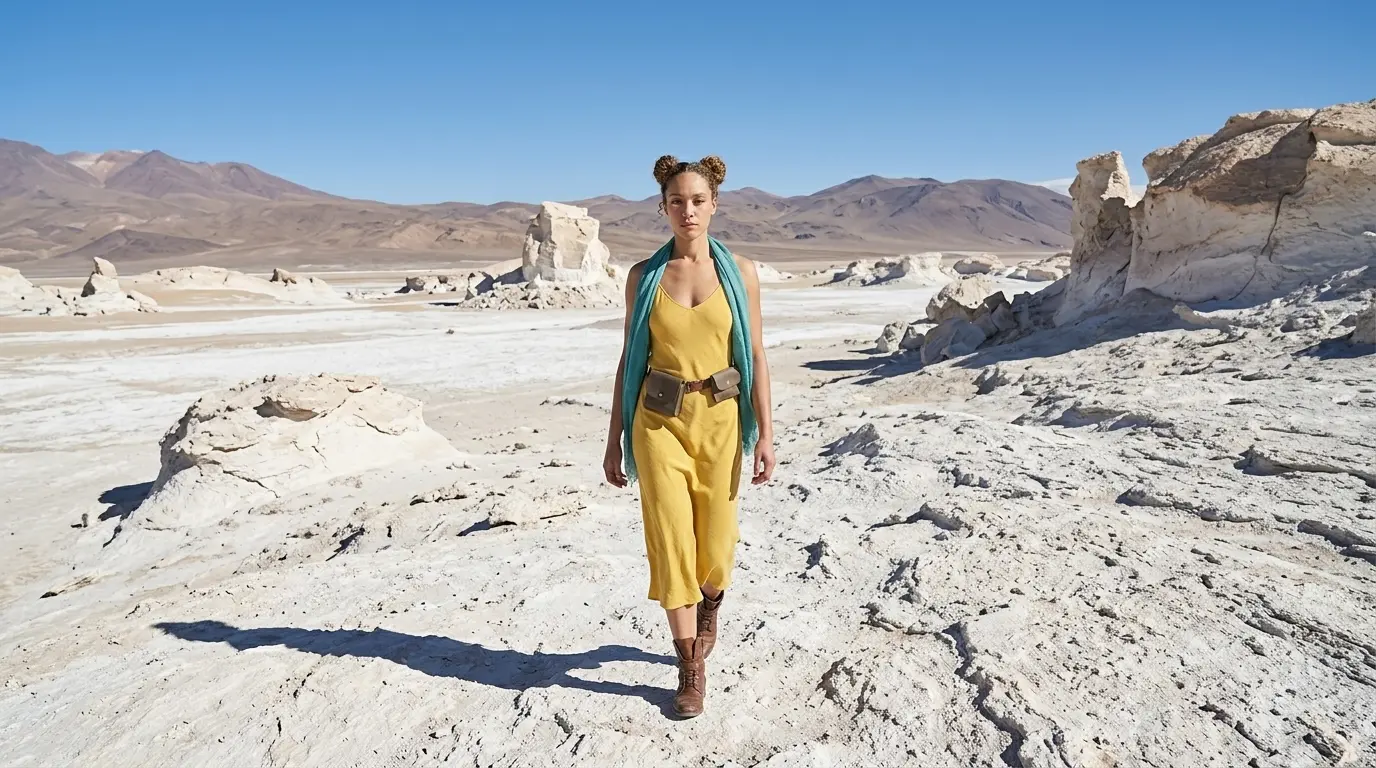
Capture Epic Scenery Using Wide Shots
Tired of cramped compositions? Discover how extreme wide shots effortlessly create epic environments with your subject.
Link to: Nano Banana Pro Low Angle Shot: Create Epic Hero Shots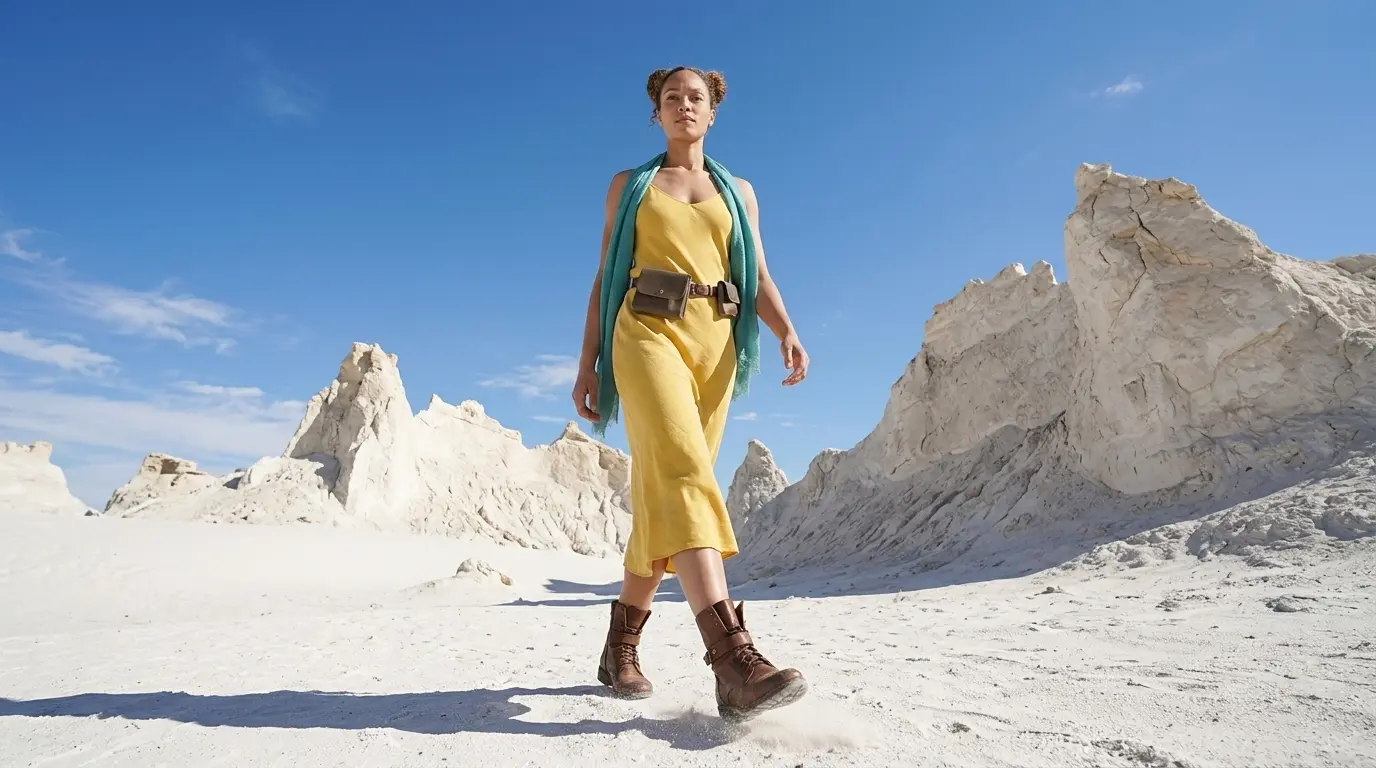
Create Domination and Power with Low Angle Shots
Learn how to change camera angles on Nano Banana Pro to make your characters look absolutely heroic.
Link to: Nano Banana Pro Camera Angles: The Ultimate Guide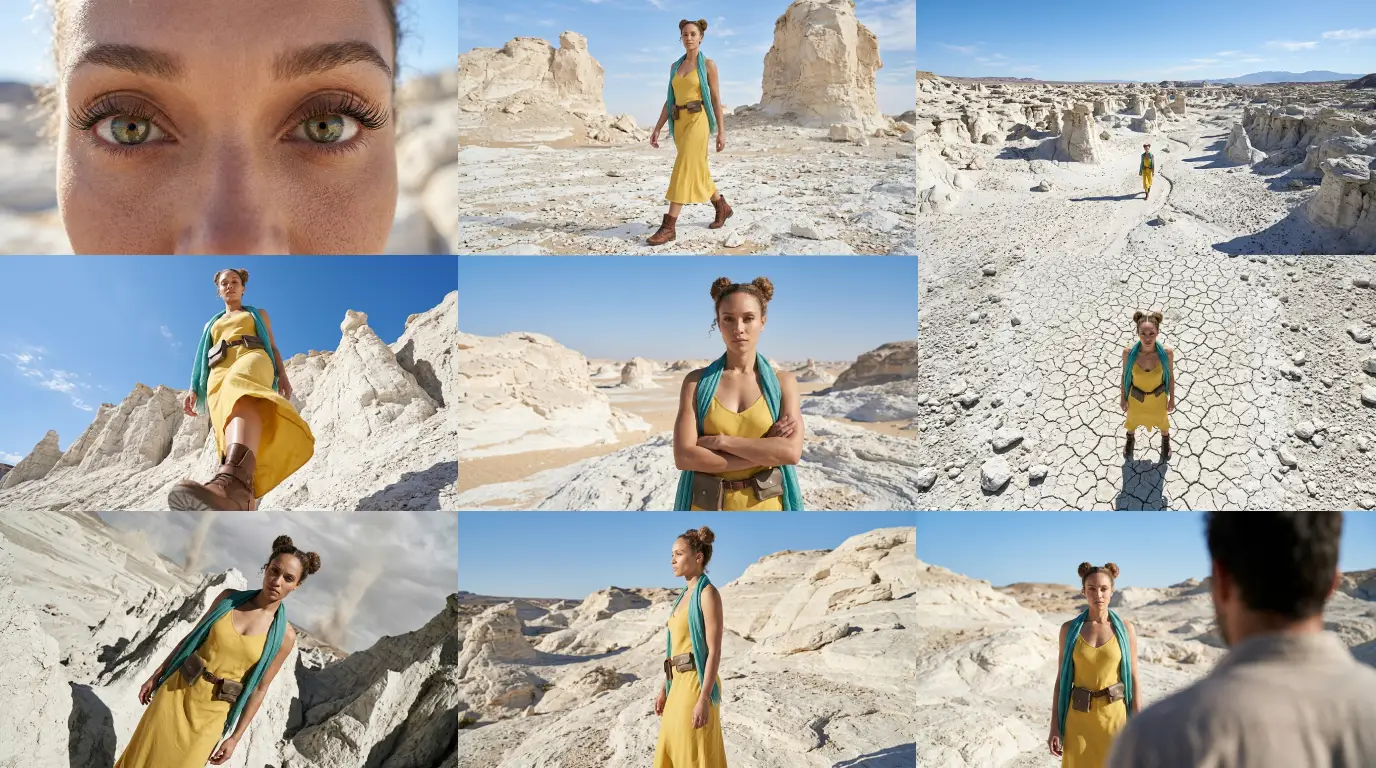
Complete Guide to Camera Angles
Jump back to our full list of Nano Banana Pro prompt tutorials and cinematic camera angles.