Learning to use the Nano Banana Pro Over-the-Shoulder Shot helps you skip boring, single-person pictures. Putting a shoulder in front forces the AI to create real depth. This connects your characters and pulls the viewer right into the story.
What’s inside this guide:
- Using the Right Keywords for Over-the-Shoulder Shots: The best keywords for framing characters.
- Why Extending Your Prompts Create Better Camera Angles: How extra details fix background depth.
- FAQ: How to Fix Over-the-Shoulder Mistakes:Quick fixes for flat images and wrong focus layouts.
- Storytelling and Camera Movement Tips: How to make your videos look cinematic.
- Explore More Nano Banana Pro Camera Angles: Links to more camera angle guides.
1. Using the Right Keywords for Over-The-Shoulder Shots
To get the best results, think of your prompt words as a guide that places your camera directly behind a character. To create your depth, you can either use the keyword by itself or write an extended prompt that describes the full conversation.
Basic Prompt with only keyword
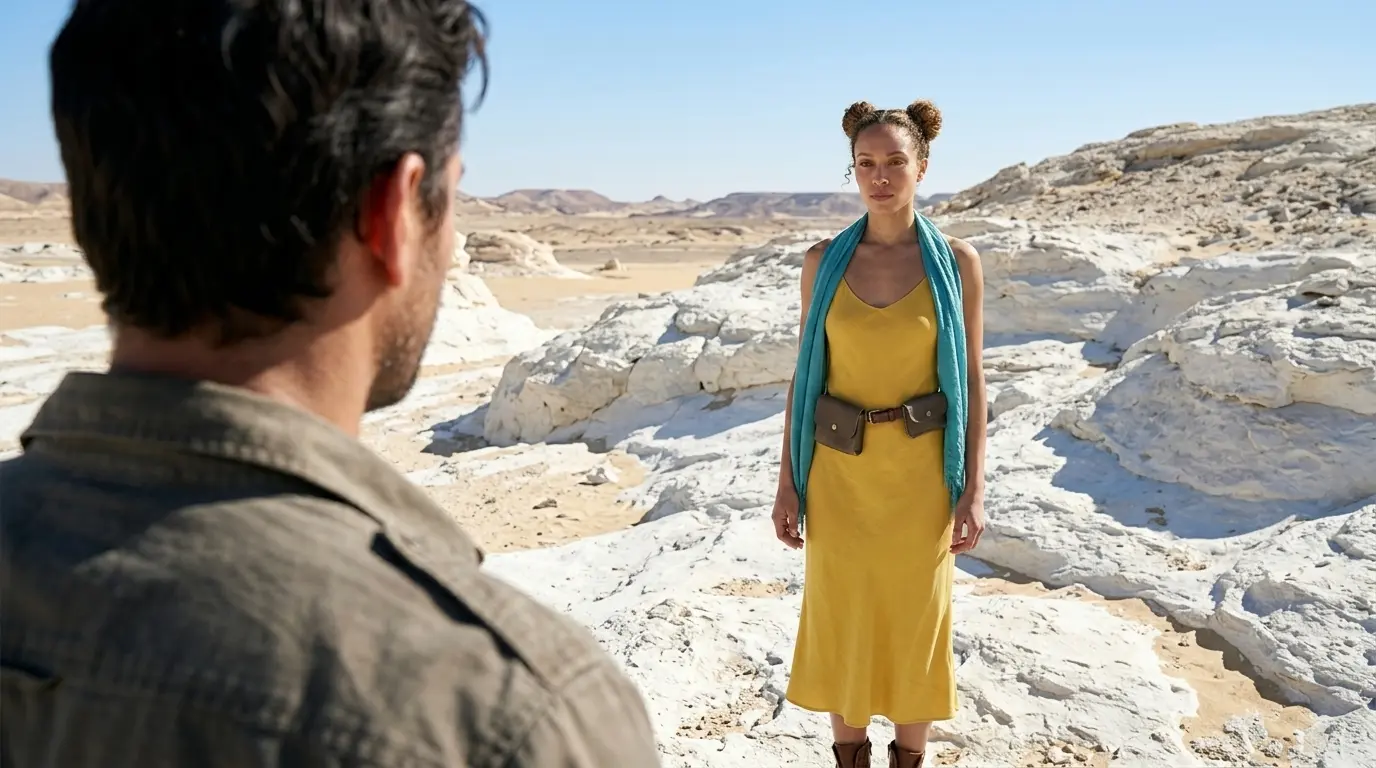
Over-the-shoulder shot of a man looking at this woman in a white rocky desert
Extended Prompt
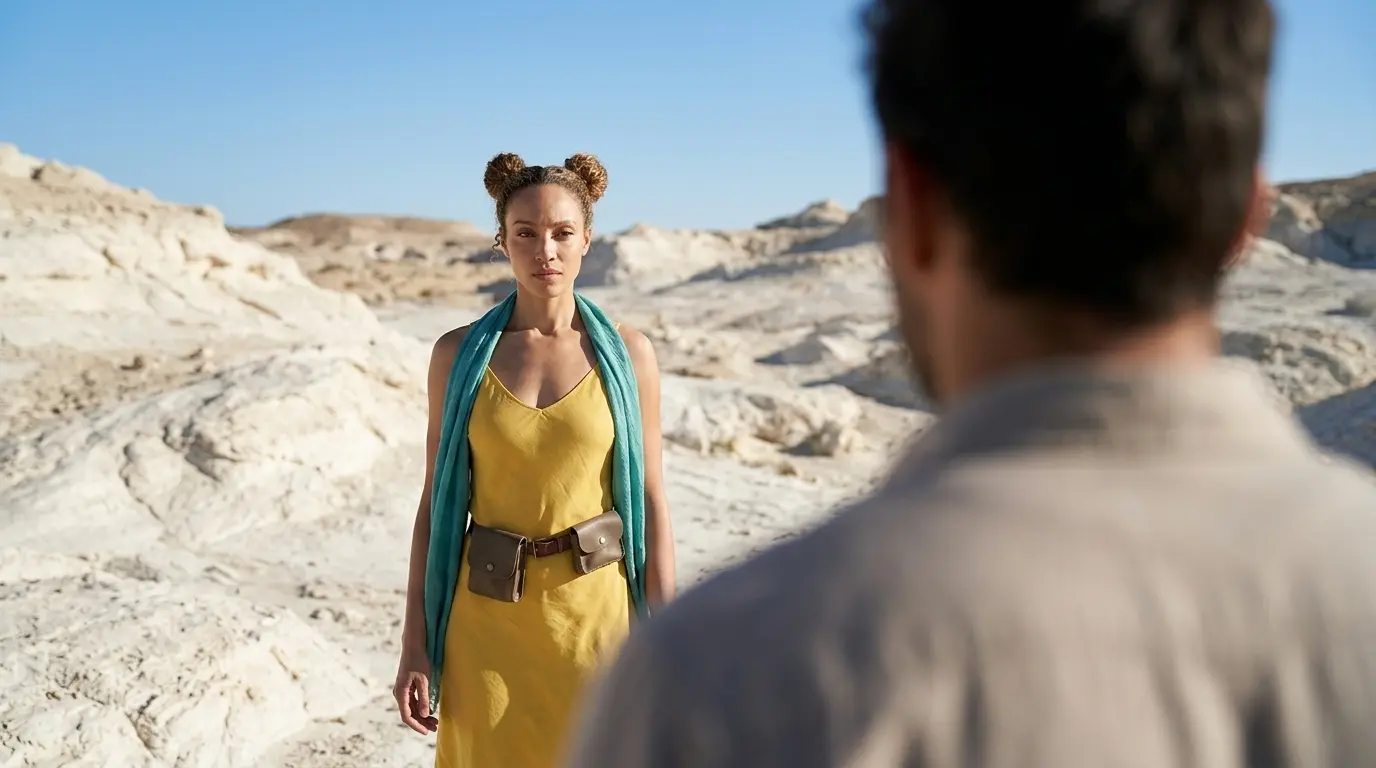
Over-the-shoulder shot of a man with blurred shoulder looking at this woman in a white rocky desert
In this example, Nano Banana Pro already understands the main keyword quite well. But this is not always the case with every camera angle, scene, or AI image model. That is why we also show additional keywords and extended prompt options, so you have more control when the basic keyword is not enough.
Additional Keywords to extend your prompt
camera positioned behind the man’s shoulder
partially framing the shoulder and head
looking past the character
from behind the man
partially framing the shoulder and head
looking past the character
from behind the man
💡
Pro Tip: While Nano Banana reads your entire prompt for context, placing camera keywords early prevents them from getting diluted by long description details later in your text!
2. Why Extending Your Prompts Create Better Camera Angles in Nano Banana Pro
The Nano Banana Pro already understands over-the-shoulder shots well, but using the keyword by itself usually gives you a flat image. To get real depth, you need extra words that tell the AI exactly where to focus:
- The Only-Keyword Prompt: Just typing “over-the-shoulder shot” makes a flat, boring picture. The AI puts both people on the same level, so the scene feels plain.
- The Extended Prompt: Adding extra descriptive words forces the AI to put all the focus on the character in front. This blurs out the person behind the camera, creating a deep, movie-like shot.
Additional Keywords
Why It Works
with blurred shoulder
Blurs the closest person. This adds depth.
camera positioned behind the man’s shoulder
Moves the lens behind the back person.
partially framing the shoulder and head
Cuts off the foreground character. This frames the edge.
looking past the character
Focuses on the person far away, not the one close.
from behind the man
Puts the camera in back. This breaks the normal front view.
3. FAQ: How to Fix Over-the-Shoulder Mistakes
4. Storytelling and Camera Movement Tips for Over-the-Shoulder Shots
In storytelling, the Nano Banana Pro over-the-shoulder shot connects your characters. By looking past one shoulder at another person, it puts the viewer right inside the conversation. It shows exactly who is watching and who is being watched.
When making videos, movement adds realism. Use these simple words to move your camera:
- Slow push-in: Moves the camera forward slowly. This focuses on the main person and makes you feel closer to the talk.
- Slight handheld movement: Adds a gentle, natural camera shake. This makes your video look like a real movie.
5. Explore More Nano Banana Pro Camera Angles
Ready to master more cinematic camera perspectives? Explore our other quick prompting guides to elevate your AI generations!
Link to: Nano Banana Pro Off-Centre Shot: Master Dynamic Framing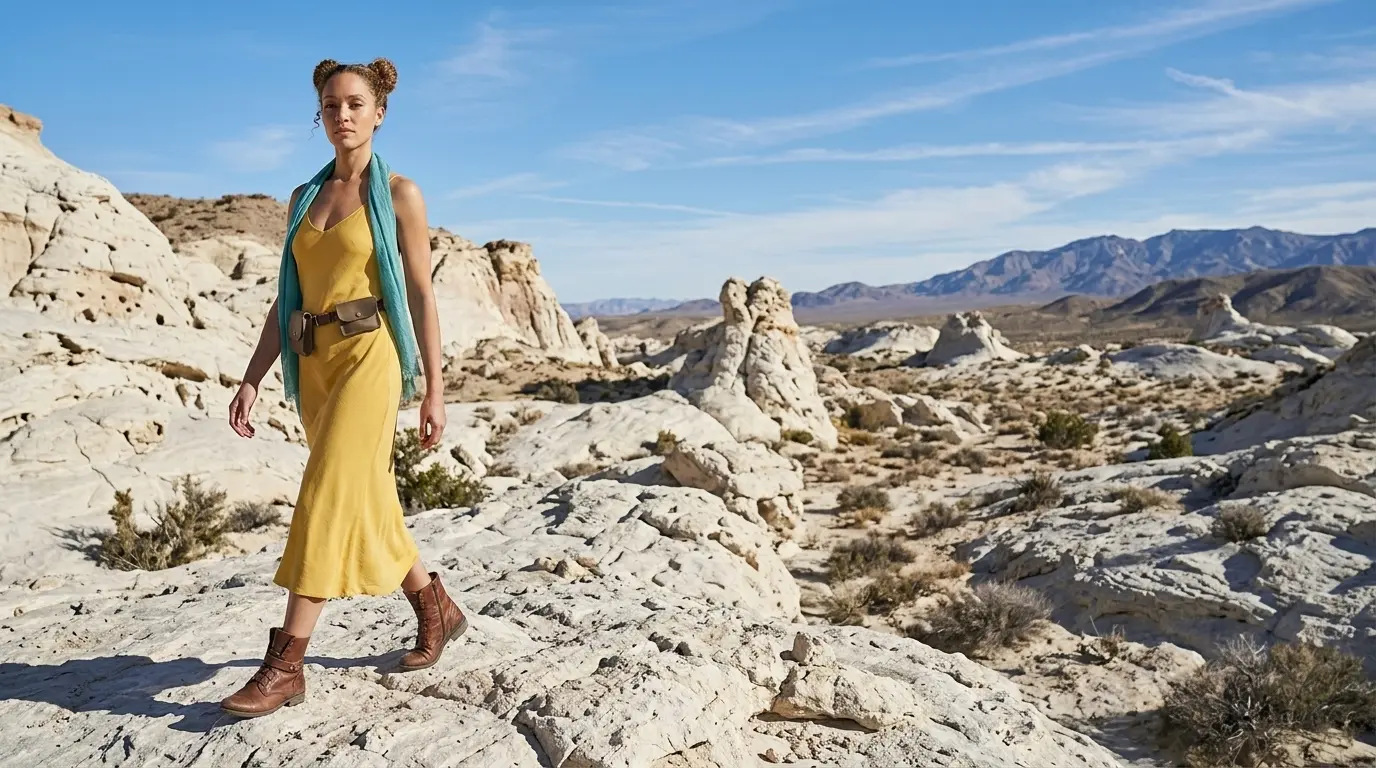
Balance Your Framing with Off-Center Shots
Push your character away from the dead center. Use the rule of thirds on Nano Banana Pro to give your background and character room to breathe.
Link to: Nano Banana Pro Back View Shot: Master Cinematic Angles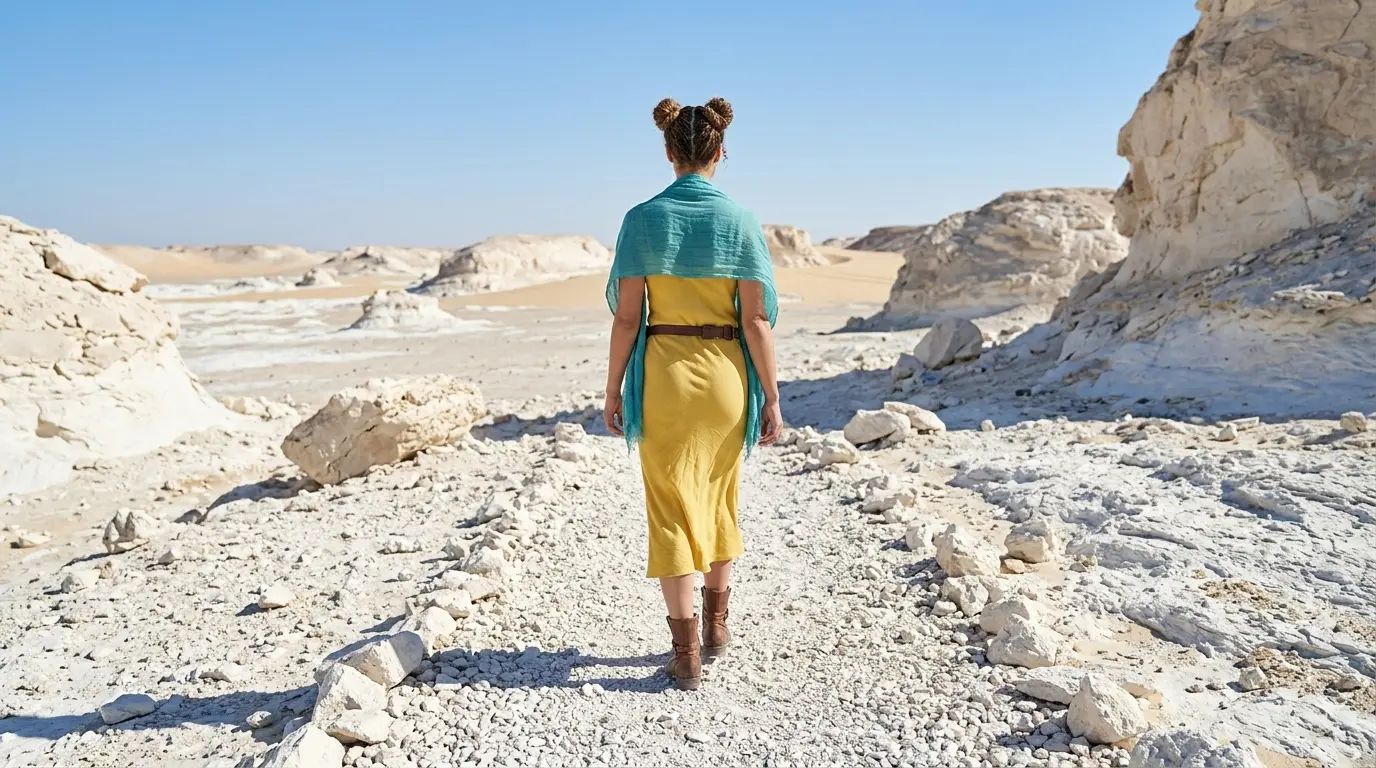
Build Mystery Using Back View Shots
Let your audience follow behind your character. Rotate the camera on Nano Banana Pro to generate a shot from behind to create a strong sense of exploration and journey.
Link to: Nano Banana Pro Camera Angles: The Ultimate Guide
Complete Guide to Camera Angles
Jump back to our full list of Nano Banana Pro prompt tutorials and cinematic camera angles.