The Nano Banana Pro Back View Shot is your secret weapon for breaking away from generic, front-facing portraits and giving your AI generations a professional film layout. By stepping the virtual camera behind your subject, you instantly create a powerful sense of mystery, scale, and spatial depth. This cinematic perspective allows you to tell a deeper story, perfectly balancing your character’s posture against a breathtaking, expansive environment.
What’s inside this guide:
- Using the Right Keywords for Back View Shots: The best keywords to use for back shots.
- Why Extending Your Prompts Create Better Camera Angles: How details stop AI mistakes.
- FAQ: How to Fix Back View Mistakes: Quick fixes for twisted heads and tight portrait crops.
- Storytelling and Camera Movement Tips: When to use this shot and video motion tricks.
- Explore More Nano Banana Pro Camera Angles: Links to more camera angle guides.
1. Using the Right Keywords for Back View Shots
Think of your prompt words as a director’s command that places your camera exactly where you want it. To create your perfect rear-angle image, you can either use the keyphrase by itself or write an extended prompt that fully describes the scene behind your subject.
Basic Prompt with only keyword
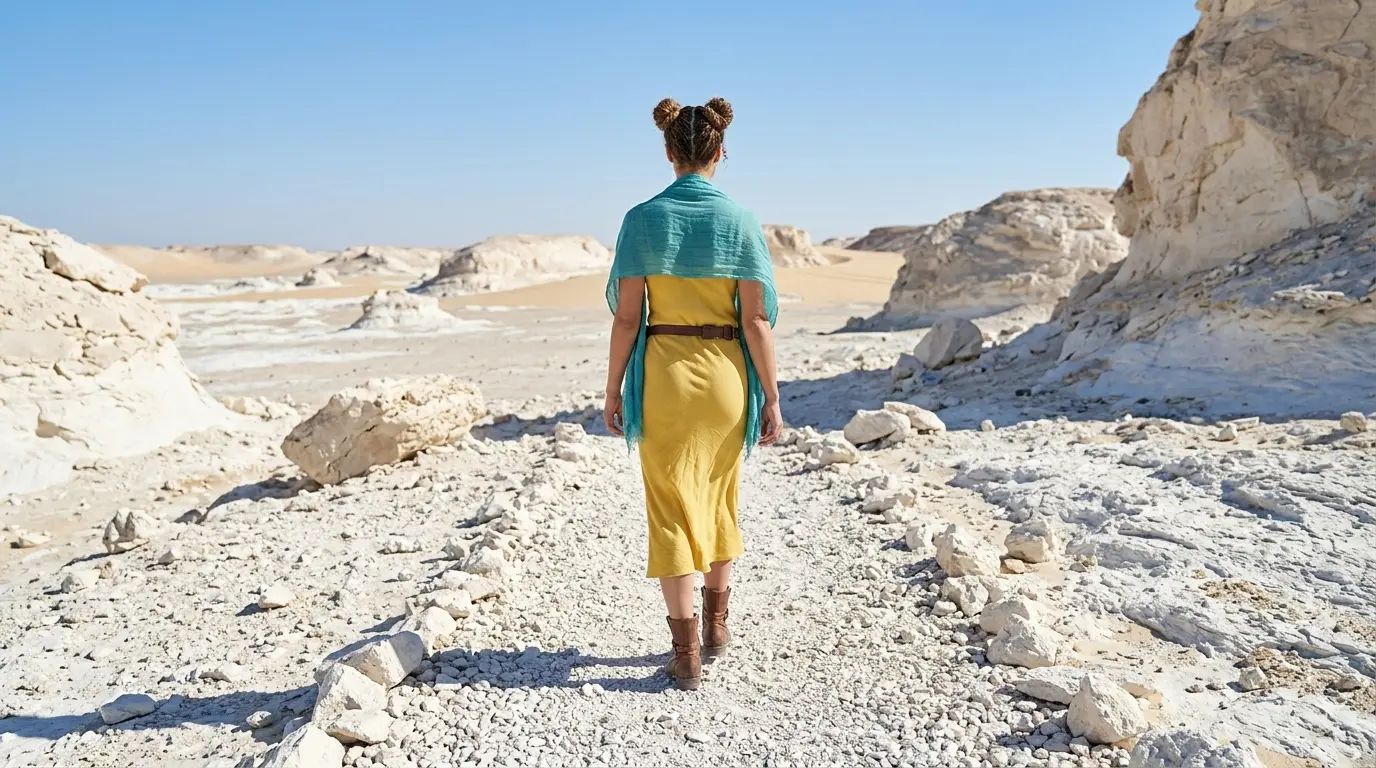
Back view shot of this woman in a white rocky desert
Extended Prompt
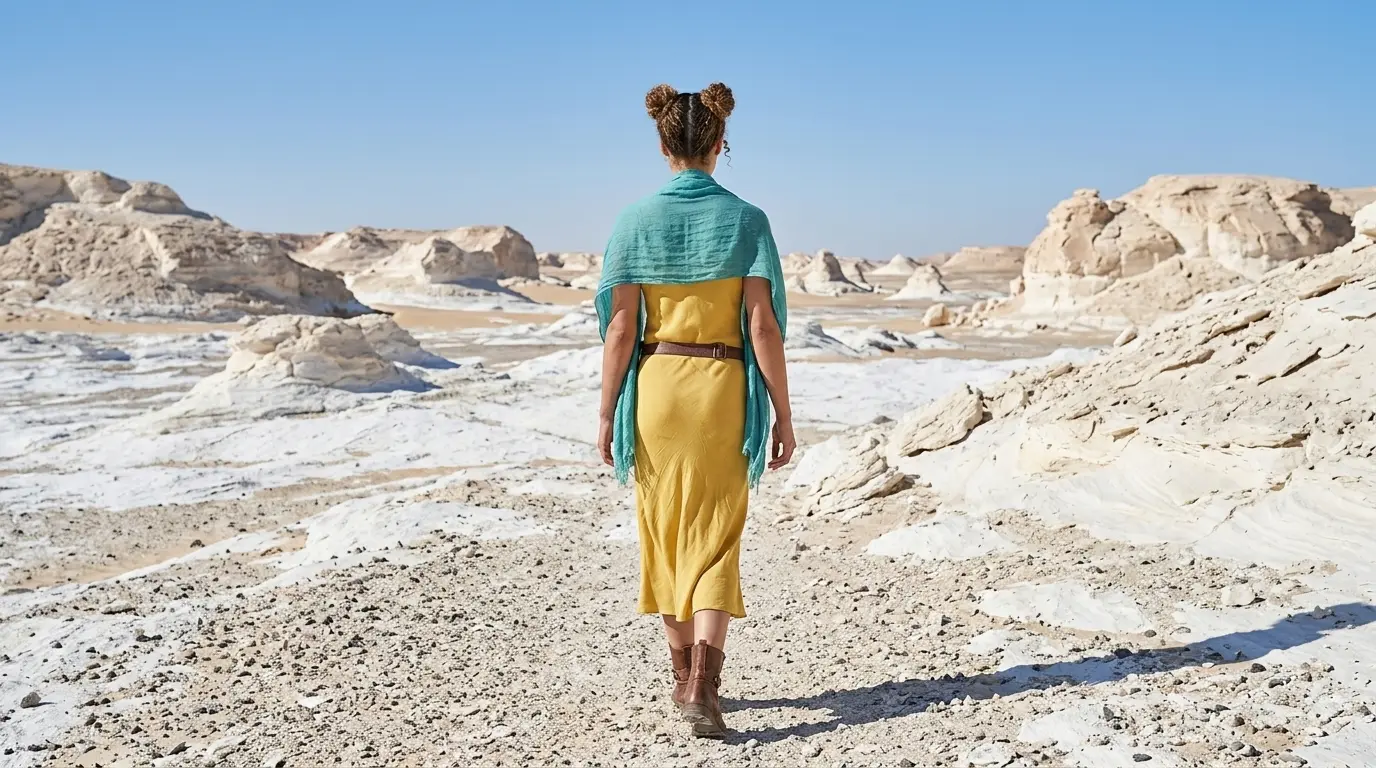
From behind back view shot of this woman in a white rocky desert
In this example, Nano Banana Pro already understands the back view shot keyword quite well. But this is not always the case with every camera angle, scene, or AI image model. That is why we also show additional keywords and extended prompt options, so you have more control when the basic keyword is not enough.
Additional Keywords to extend your prompt
back of the head
back of the body
walking toward the horizon
facing away from the camera
looking into the distance
back of the body
walking toward the horizon
facing away from the camera
looking into the distance
💡
Pro Tip: While Nano Banana reads your entire prompt for context, placing camera keywords early prevents them from getting diluted by long description details later in your text!
2. Why Extending Your Prompts Create Better Camera Angles
Both styles tell the AI where to put the camera, but using only one keyword leaves too much up to guesswork.
To get a perfect Nano Banana Pro Back View Shot, describe the space around your character to lock the camera in place:
-
The Only-Keyword Prompt: Writing just “Back view shot” creates a clean image, but you let the AI decide everything else for you.
-
The Extended Prompt: Adding specific details like “walking toward the horizon” or “vast white desert” forces the AI to step the camera back. This locks in your rear perspective and prevents the AI from turning the character around.
Additional Keywords
Why It Works
from behind
Acts as a direct camera modifier to rotate the perspective.
back of the head
Forces the AI to render rear hair and scalp angles.
back of the body
Blocks the AI from drawing front-facing details.
walking toward the horizon
Creates forward motion that naturally hides the face.
facing away from the camera
Gives a direct command to flip the camera angle.
looking into the distance
Shifts the AI’s focus to the landscape instead of a face.
3. FAQ: How to Fix Back View Mistakes
4. Storytelling and Camera Movement Tips
In visual storytelling, looking down at a subject completely changes how the audience relates to them. Use this framing style to instantly make a character look vulnerable, isolated, or dramatically overwhelmed in your scenes.
When generating video sequences, adding motion brings this narrative energy to life. Use these precise camera movement keywords to enhance your high-angle shots:
-
Subtle push-in from a high angle: Moves the camera slightly forward and downward, increasing the psychological pressure and intensity on the subject.
-
High-angle tilt down: Moves the lens downward from an elevated position, reinforcing the sense of environmental weight and dominance over the character.
-
Cinematic high-angle tracking shot: Follows the character from a high perspective, capturing their isolation within the environment while giving your video the look and feel of a high-budget movie.
5. Explore More Nano Banana Pro Camera Angles
Ready to master more cinematic camera perspectives? Explore our other quick prompting guides to elevate your AI generations!
Link to: Nano Banana Pro Over-the-Shoulder Shot: Film Conversations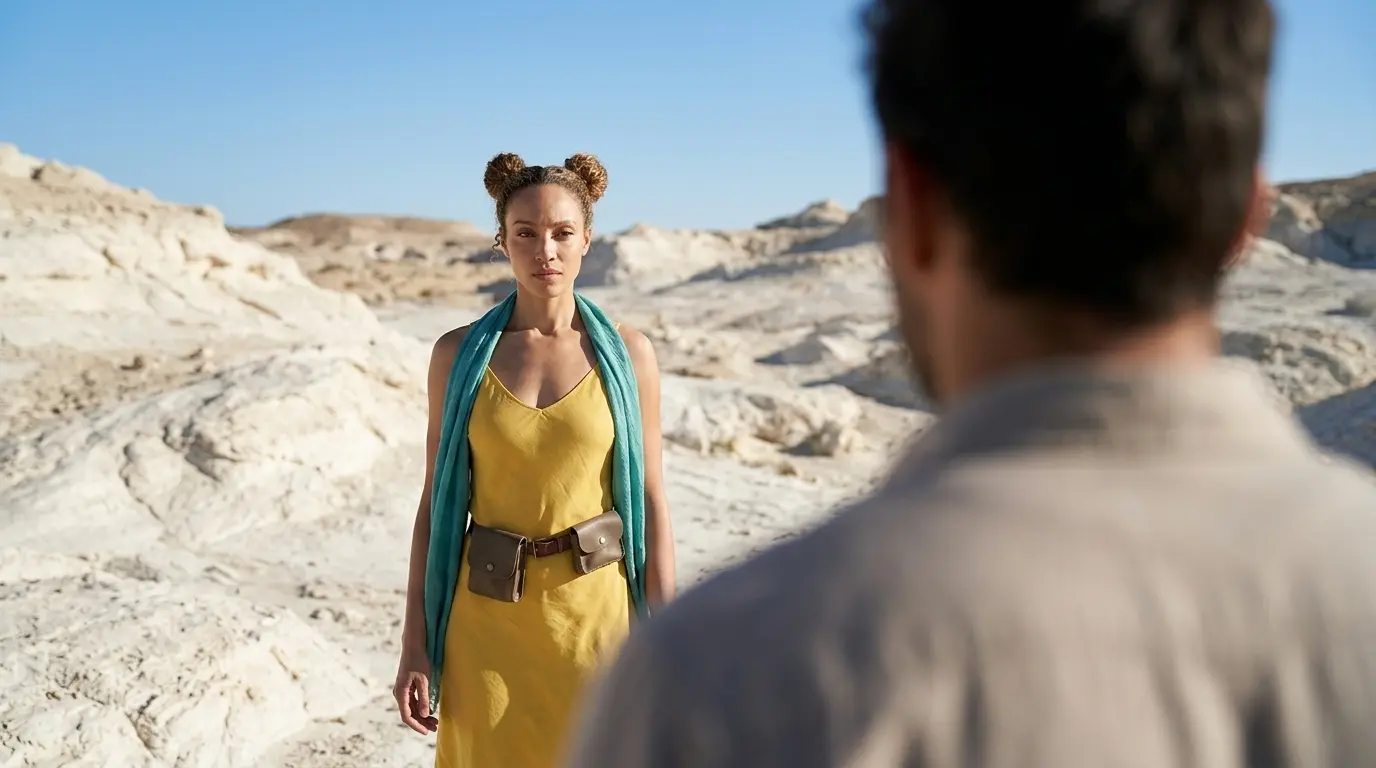
Capture Real Conversations with Over-the-Shoulder Shots
Sneak the lens right behind your character. Master this over-the-shoulder Nano Banana camera effect to instantly draw viewers deep into the scene’s dialogue.
Link to: Nano Banana Pro Dutch Angle Shot: Dramatic Angles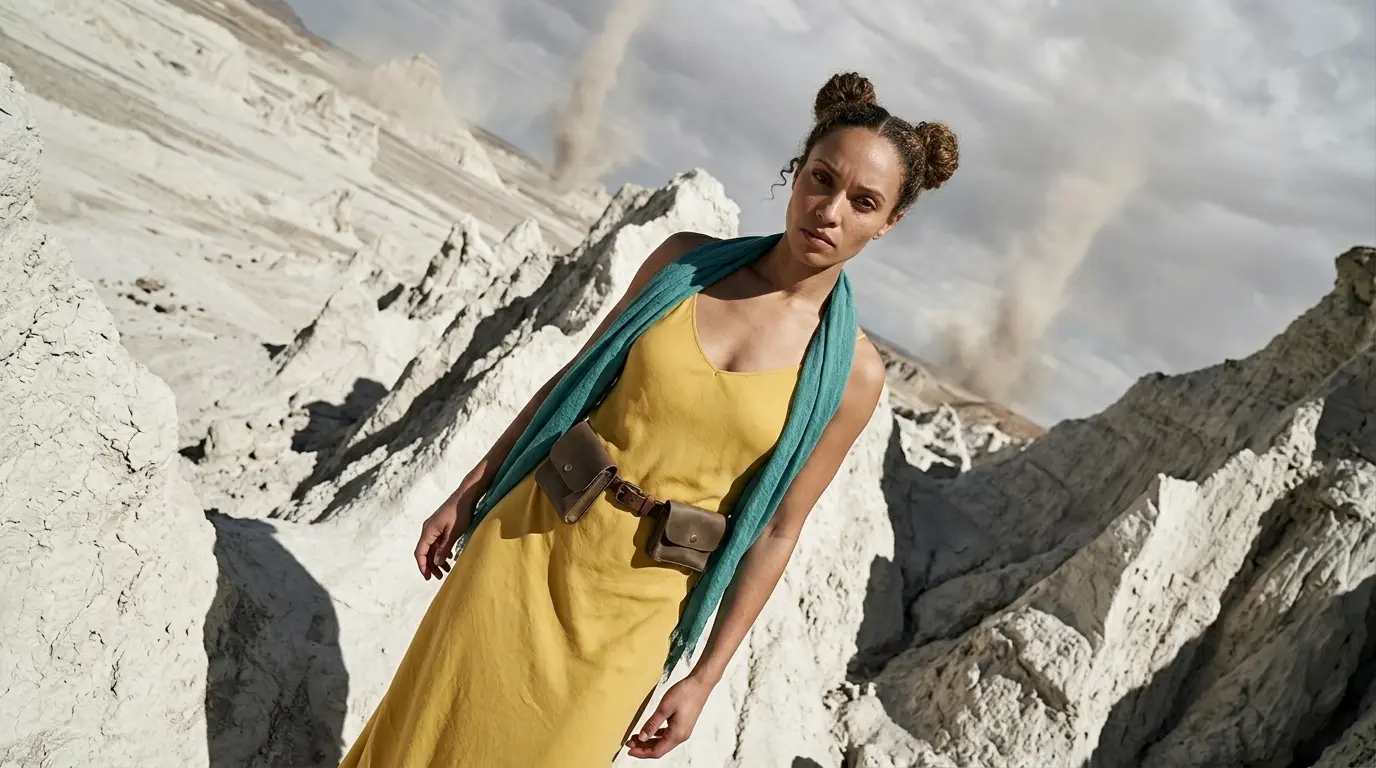
Add Intense Tension Using Dutch Angles
Tilt your camera frame to create instant drama. Master the tilted frame on Nano Banana Pro to make your action scenes feel unstable and cinematic.
Link to: Nano Banana Pro Camera Angles: The Ultimate Guide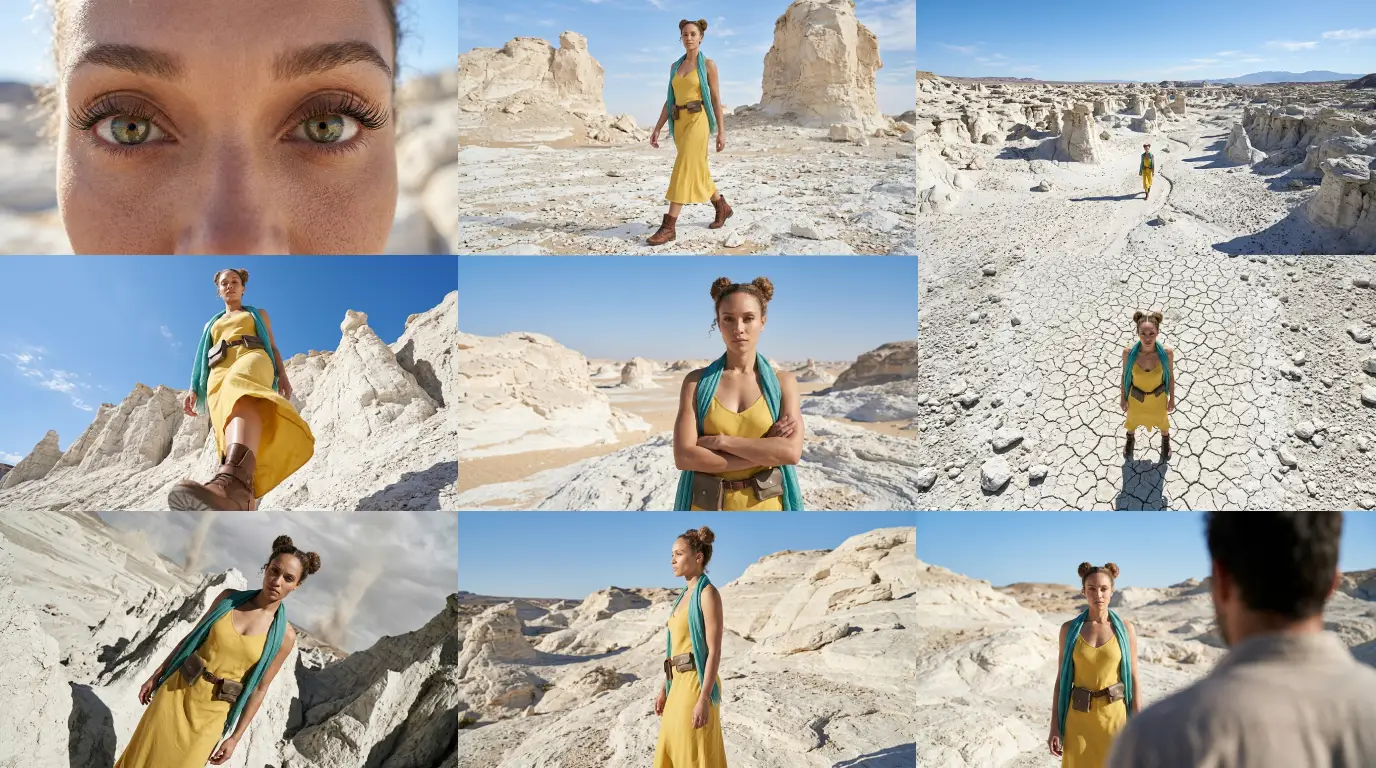
Complete Guide to Camera Angles
Jump back to our full list of Nano Banana Pro prompt tutorials and cinematic camera angles.