Learning to use the Nano Banana Pro extreme close-up shot lets you get away from boring, standard AI framing. Most tools automatically make basic headshots that miss the small details of a scene. Moving the camera super close locks the lens right onto your subject, making your images look clean and sharp.
What’s inside this guide:
- Using the Right Keywords for Extreme Close-Up Shots: Words that force the AI to zoom in.
- Why Extending Your Prompts Create Better Shots: How extra details fix framing.
- FAQ: How to Fix Extreme Close-Up Mistakes: Quick fixes for common errors.
- Storytelling and Camera Movement Tips: When to use this shot and video motion tricks.
- Explore More Nano Banana Pro Camera Angles: Links to more camera angle guides.
1. Using the Right Keywords for Extreme Close-up Shots
Think of your prompt words as a guide that places your camera exactly where you want it. To create your image, you can either use the keyword by itself or write an extended prompt that describes the full scene.
Basic Prompt with only keyword
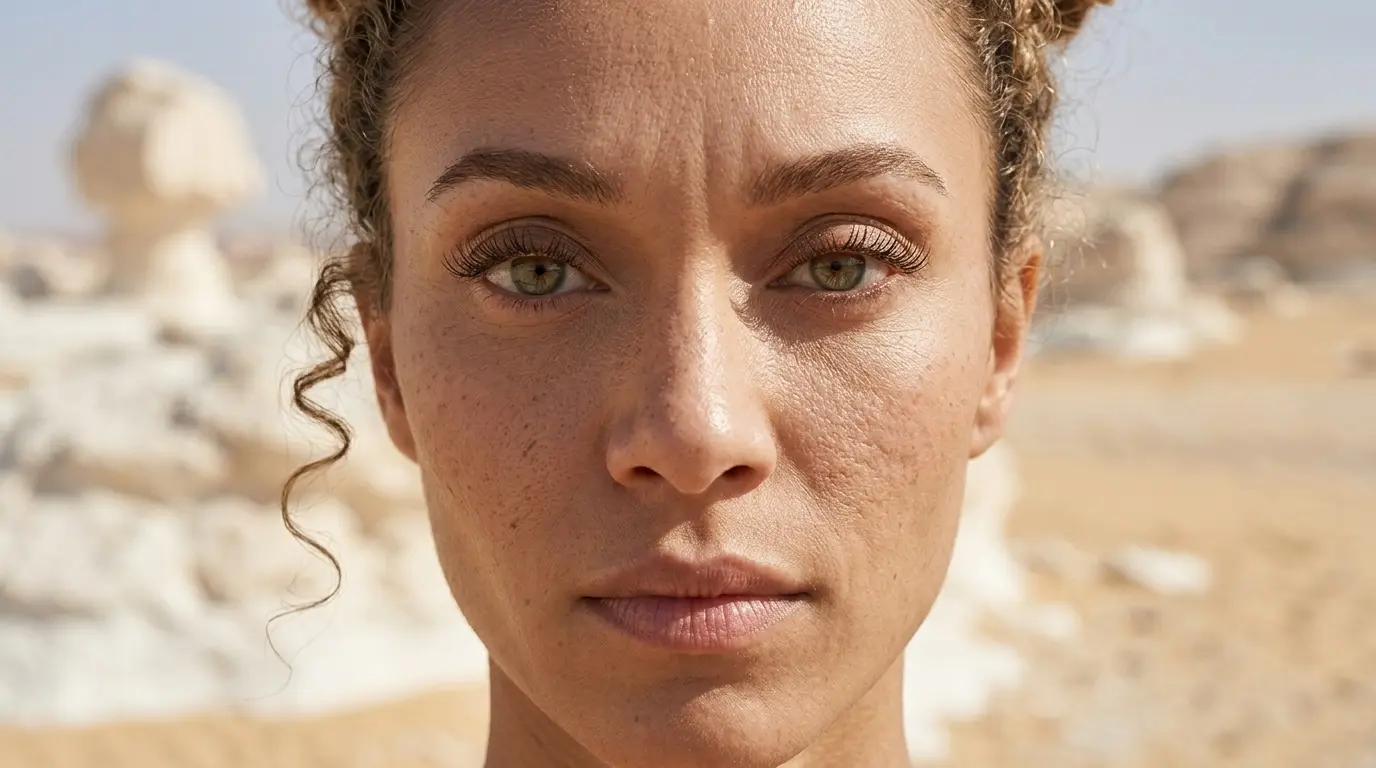
Extreme close-up shot of this woman in a white rocky desert
Extended Prompt
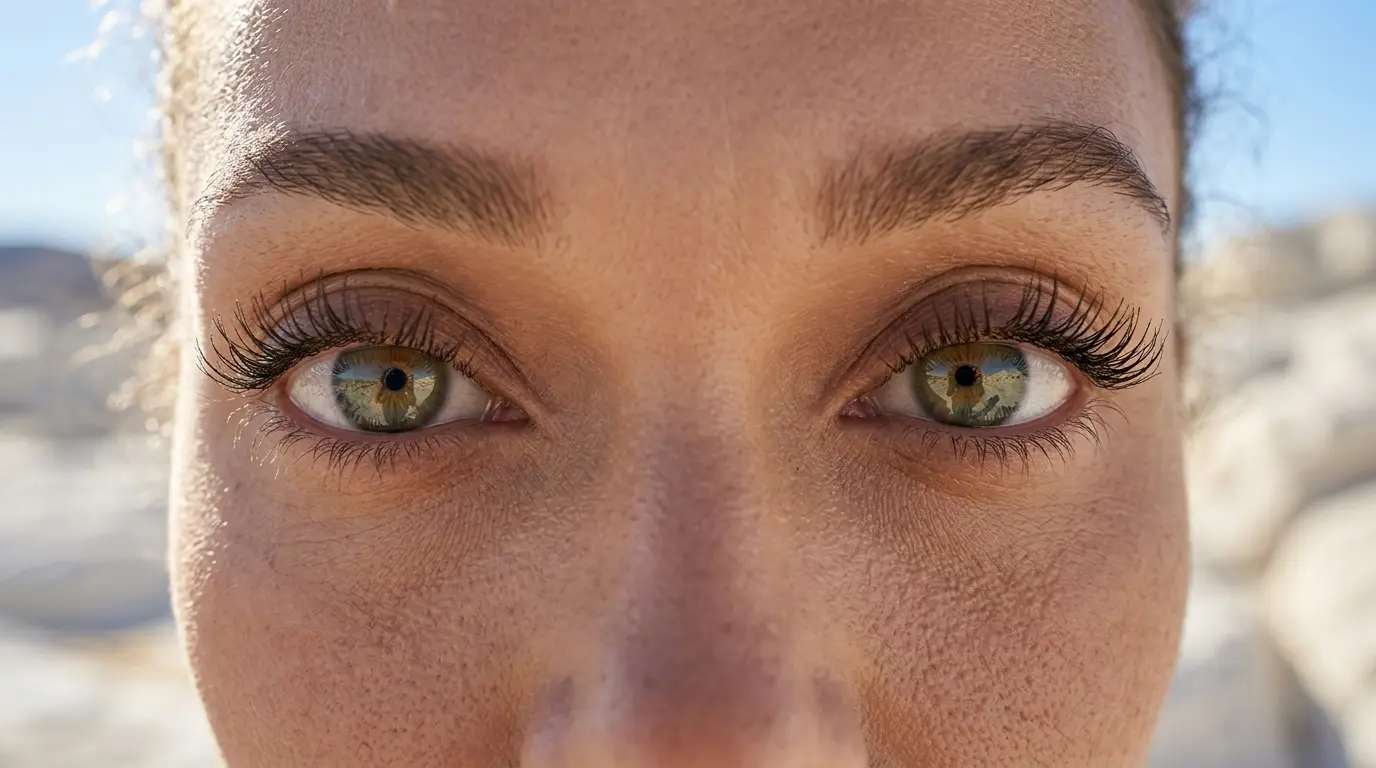
Extreme close-up shot of this woman’s eyes in a white rocky desert
Additional Keywords to extend your prompt
focusing tightly on her eyes and freckles
visible pores and freckles
showing detailed emotional expression
visible pores and freckles
showing detailed emotional expression
💡
Pro Tip: While Nano Banana reads your entire prompt for context, placing camera keywords early prevents them from getting diluted by long description details later in your text!
2. Why Extending Your Prompts Create Better Shots
Using just the main keyword sometimes gives the AI too much freedom.
To get the exact framing you want, you need to describe the closest facial features to lock the lens in place:
- The Only-Keyword Prompt: Simply typing “Extreme close-up shot” often doesn’t get close enough. The AI has to guess what you want, so it could just show a normal headshot.
- The Extended Prompt: Adding small details, like the character’s eyes, forces the AI to zoom the lens right up to the face. This fixes your view and cuts out the rest of the background.
Additional Keywords
Why It Works
focusing tightly on her eyes and freckles
Tells the AI where to point the lens so it does put back.
visible pores and freckles
Forces the AI to zoom in completely to show textures.
showing detailed emotional expression
Stops the AI from creating a blank, boring face.
3. FAQ: How to Fix Extreme Close-Up Mistakes
4. Storytelling and Camera Movement Tips for Extreme Close-Ups
In storytelling, zooming in super close on a face changes how people feel when they watch your scene. Use the Nano Banana Pro extreme close-up shot to create intense drama. It forces the viewer to look only at one important detail, like the eyes, lips, or hands.
When making videos, adding camera movement makes the scene feel alive. Use these simple words to move your camera:
- Micro push-in: Moves the camera forward just a tiny bit. Because the image is already so big, this tiny move adds a lot of excitement.
- Cinematic tracking shot: Slides smoothly sideways across a small area. This keeps the camera locked onto your subject and makes your video look like a real movie.
5. Explore More Nano Banana Pro Camera Angles
Ready to master more cinematic camera perspectives? Explore our other quick prompting guides to elevate your AI generations!
Link to: Nano Banana Pro Macro Shot: Master Cinematic Textures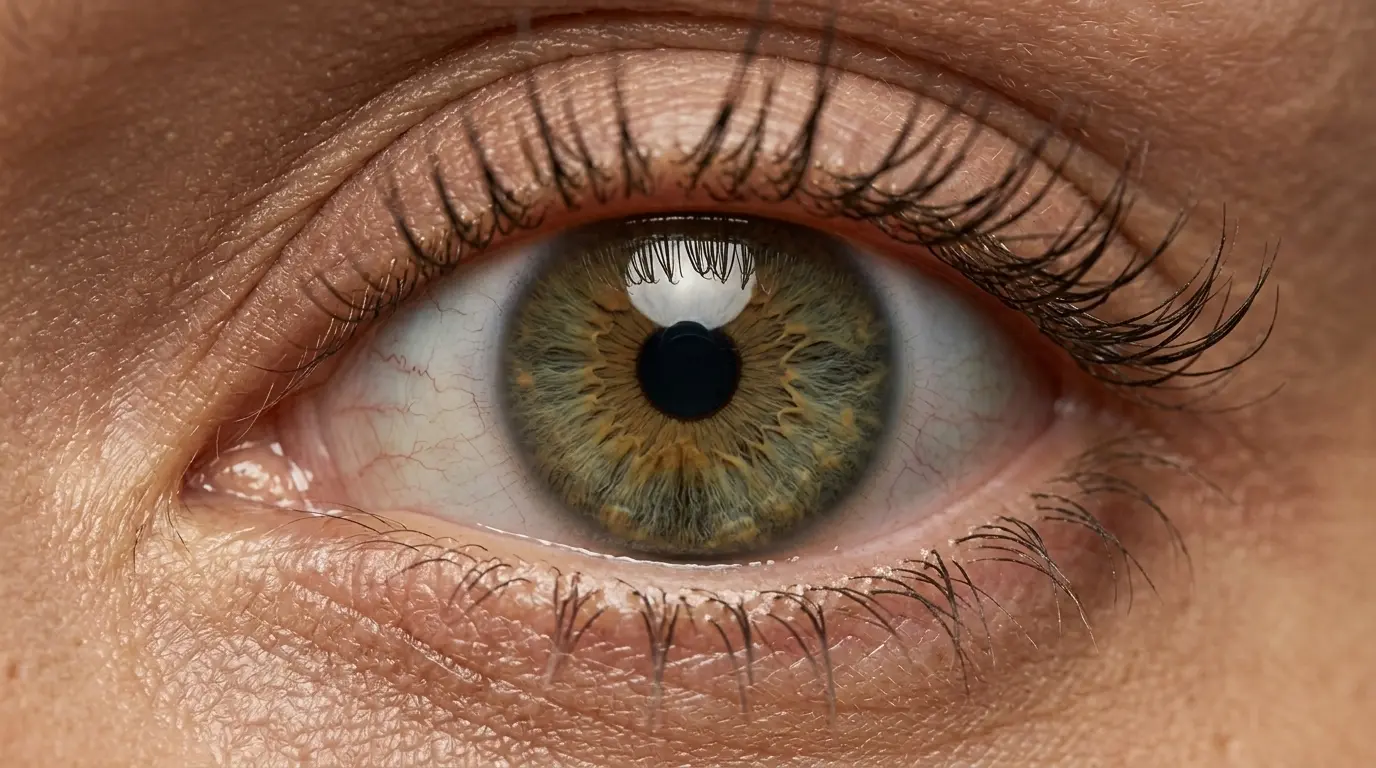
Get super close with Macro Shots
Learn how a different camera angle uncovers highly-detailed textures that simple shots completely miss.
Link to: Nano Banana Pro Close-Up Shot: Capture Intense Emotion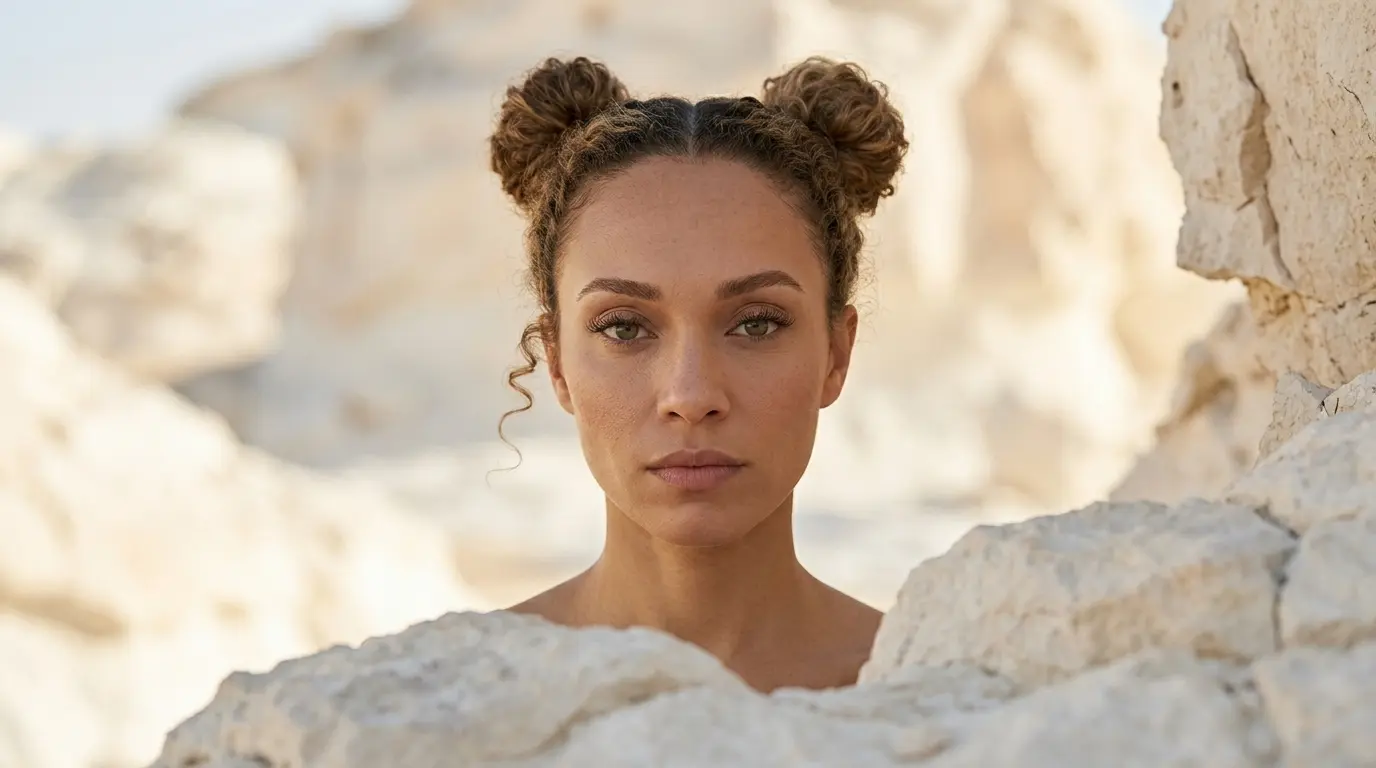
Mastering Close-Up Shots
Stop letting AI guess your zoom level. Discover how to effortlessly you can change camera position for tight, cinematic portraits.
Link to: Nano Banana Pro Camera Angles: The Ultimate Guide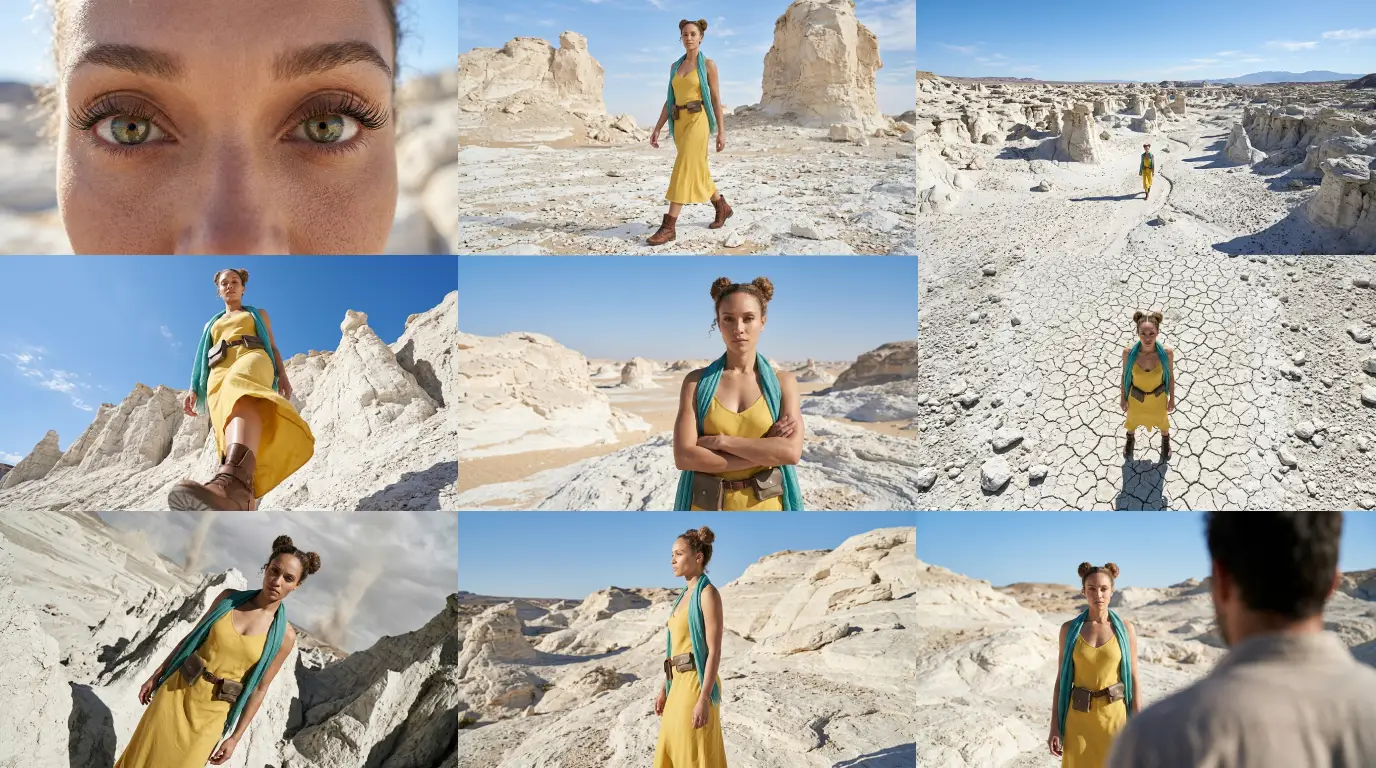
Complete Guide to Camera Angles
Jump back to our full list of Nano Banana camera prompt tutorials and cinematic camera angles.