Mastering the Nano Banana Pro Macro Shot is the fastest way to skip boring, distant portraits and bring professional film depth to your AI art. Moving your virtual camera incredibly close to your subject unlocks an unseen world of intense textures and raw emotion. This simple perspective shift changes everything, instantly turning basic close-ups into stunning cinematic masterpieces.
What’s inside this guide:
- Using the Right Keywords for Macro Shots: The best keywords to capture extreme detail.
- Why Extending Your Prompts Create Better Camera Angles: How precise details stop AI mistakes.
- FAQ: How to Fix Macro Shot Mistakes: Quick fixes lost textures.
- Storytelling and Camera Movement Tips: When to use this shot and video motion tricks.
- Explore More Nano Banana Pro Camera Angles: Links to more camera angle guides.
1. Using the Right Keywords for Macro Shots
Think of your prompt words as a map that points your camera exactly where it needs to look. To get these macro shots on Nano Banana Pro, you can just use the shot name as the main keyword by itself. You can also write a longer prompt that describes the tiny details you want the AI to see.
Basic Prompt with only keyword
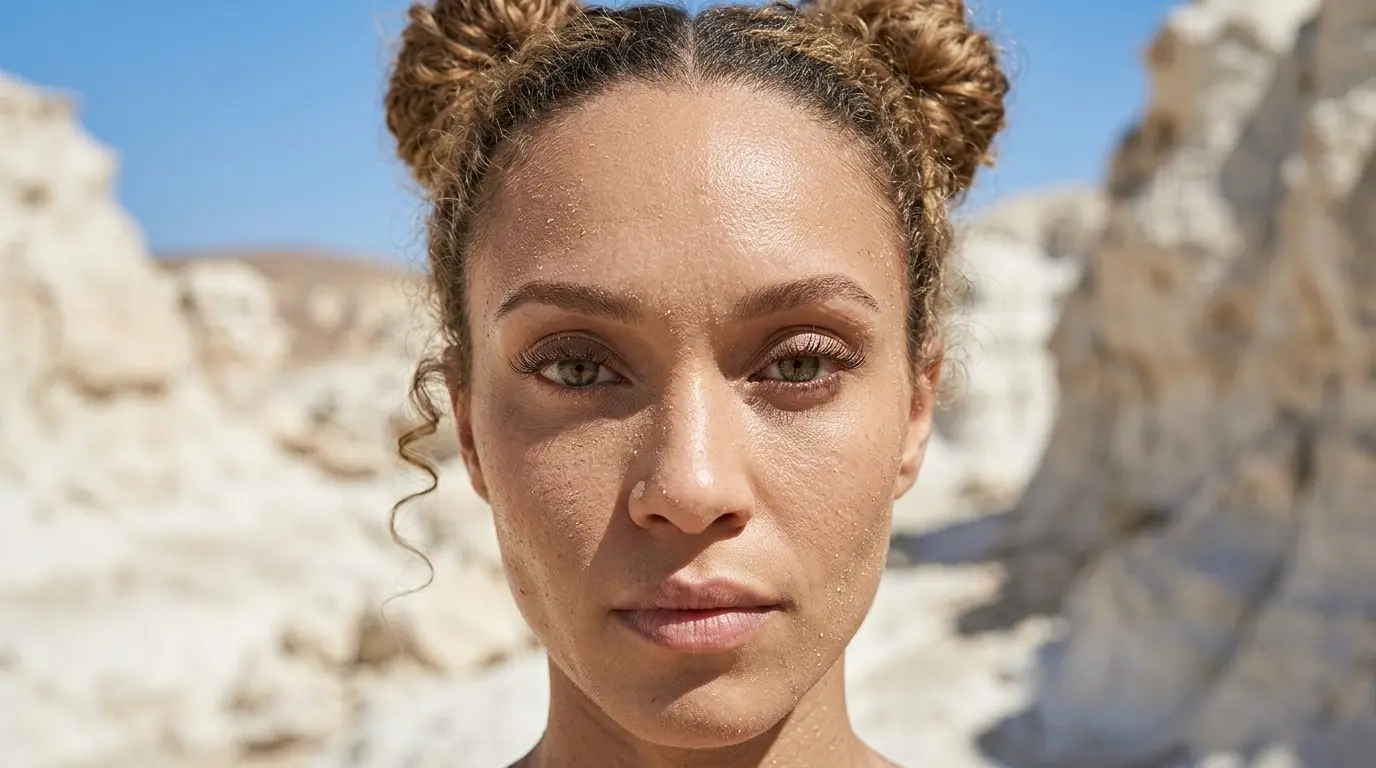
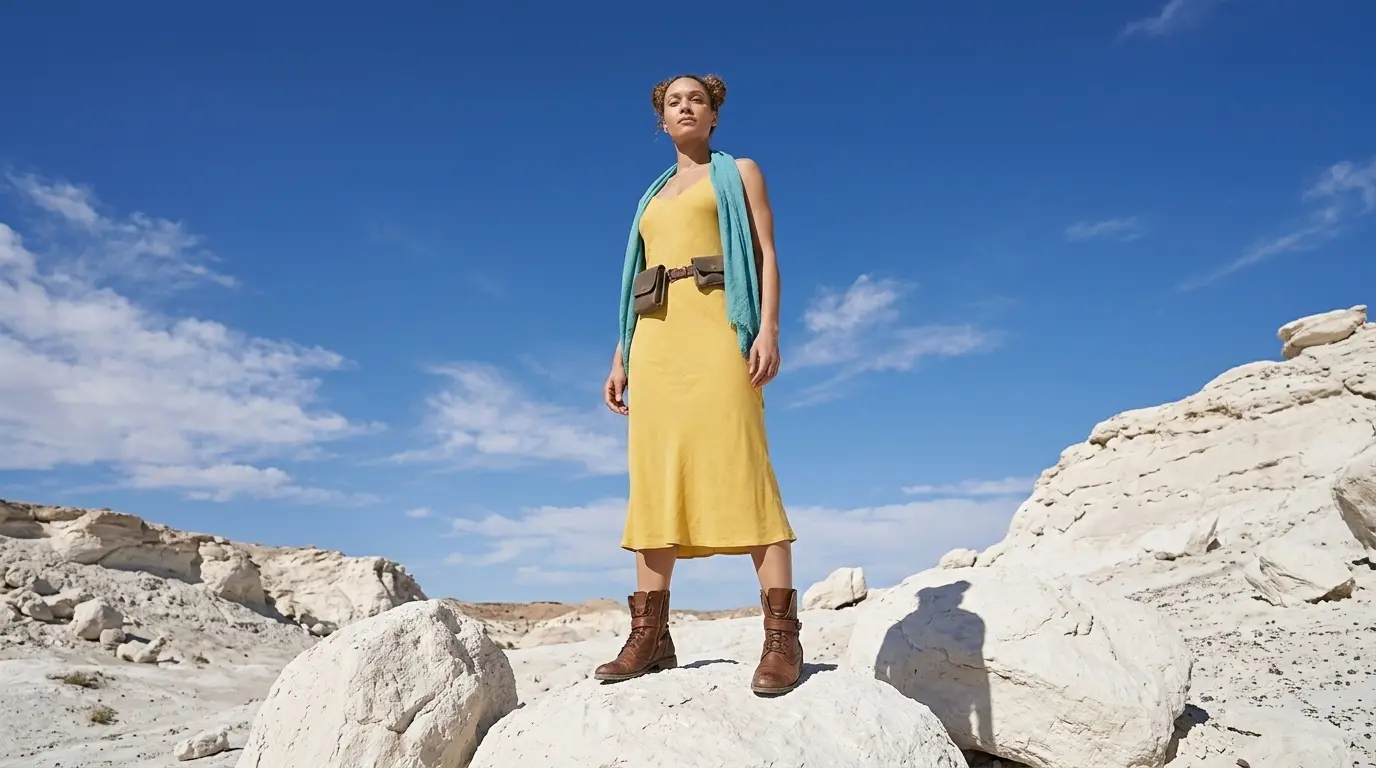
Macro Shot of this woman in a white rocky desert
Extended Prompt
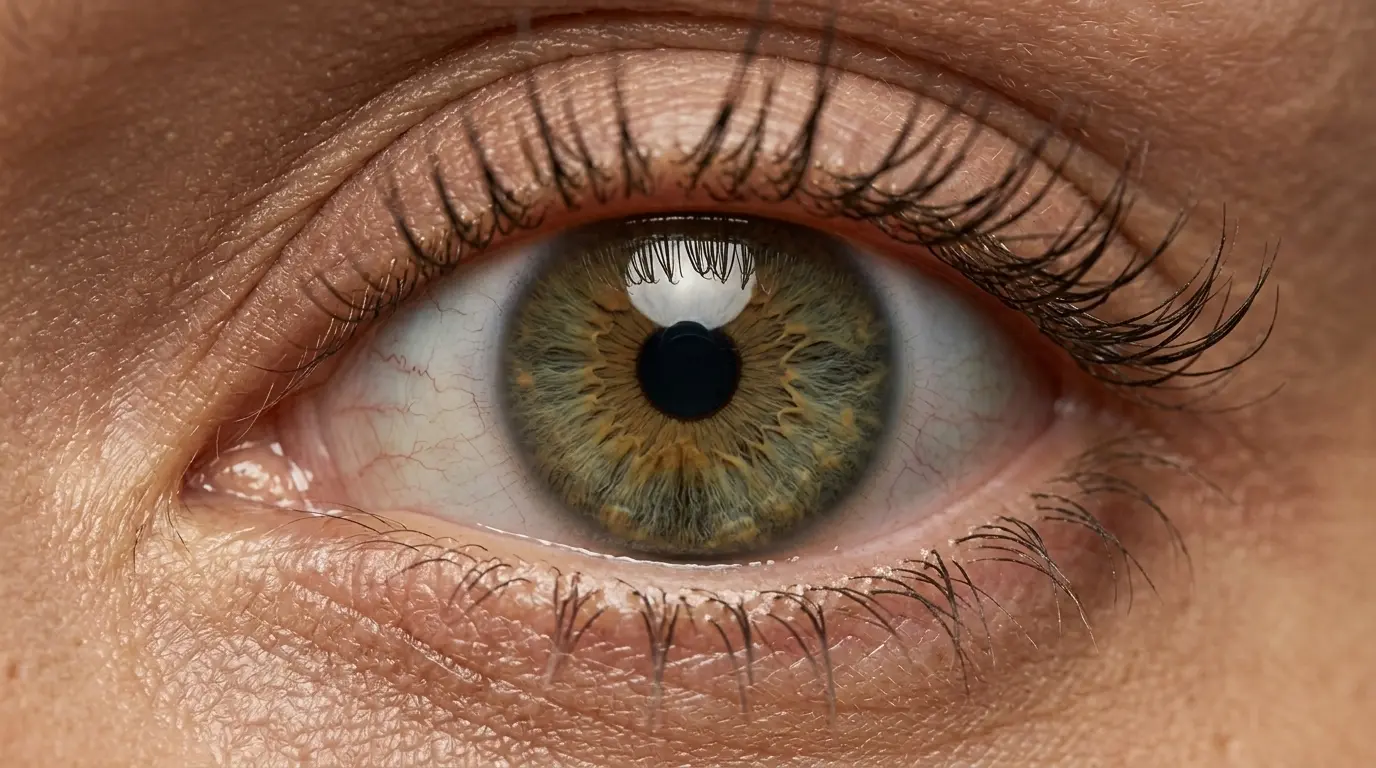
Macro shot of this woman’s single eye with detailed iris texture filling the frame
In this example, Nano Banana Pro struggles to understand what you want to focus on when you only use the keyword. That is why we also show additional keywords and extended prompt options, so you have more control when the basic keyword is not enough.
Additional Keywords to extend your prompt
single eye
detailed iris texture
filling the frame
macro shot of a woman’s single eye
detailed iris texture
filling the frame
macro shot of a woman’s single eye
💡
Pro Tip: While Nano Banana reads your entire prompt for context, placing camera keywords early prevents them from getting diluted by long description details later in your text!
2. Why Extending Your Prompts Create Better Camera Angles
Using only the keyword leaves too much guesswork for Nano Banana Pro.
To get the exact look you want, describe the specific detail or crop to lock the camera in place:
-
The Only-Keyword Prompt: Writing just “Macro shot” creates a clean portrait, but you let the AI decide what to focus on, often defaulting to a full face.
-
The Extended Prompt: Adding specific details like “macro shot of a woman’s single eye, filling the frame” forces the AI to zoom tightly on one feature. This locks in your close-up perspective and reveals the fine textures of the iris.
Additional Keywords
Why It Works
single eye
Forces the AI to zoom in on one detail instead of a full face.
detailed iris texture
Tells Nano Banana to focus on fine details instead of smooth skin.
filling the frame
Removes the background and pulls the camera completely in.
macro shot of a woman’s single eye
Clearly states the subject so the AI doesn’t make a standard portrait.
3. FAQ: How to Fix Macro Shot Mistakes
4. Storytelling and Camera Movement Tips for Macro Shots on Nano Banana Pro
In storytelling, the Nano Banana Pro macro shot connects your viewer to the smallest details. By pulling the lens right up to a subject, it puts the viewer inside an intimate, hidden world. It shows exactly what deserves the closest attention and builds intense focus.
When making videos, movement adds realism. Use these simple words to move your camera:
-
Slow push-in: Moves the camera forward slowly. This focuses tightly on the micro-detail and builds deep emotion.
-
Slight handheld movement: Adds a gentle, natural camera shake. This keeps the ultra-close shot from feeling stiff and makes your video look like a real movie.
5. Explore More Nano Banana Pro Camera Angles
Ready to master more cinematic camera perspectives? Explore our other quick prompting guides to elevate your AI generations!
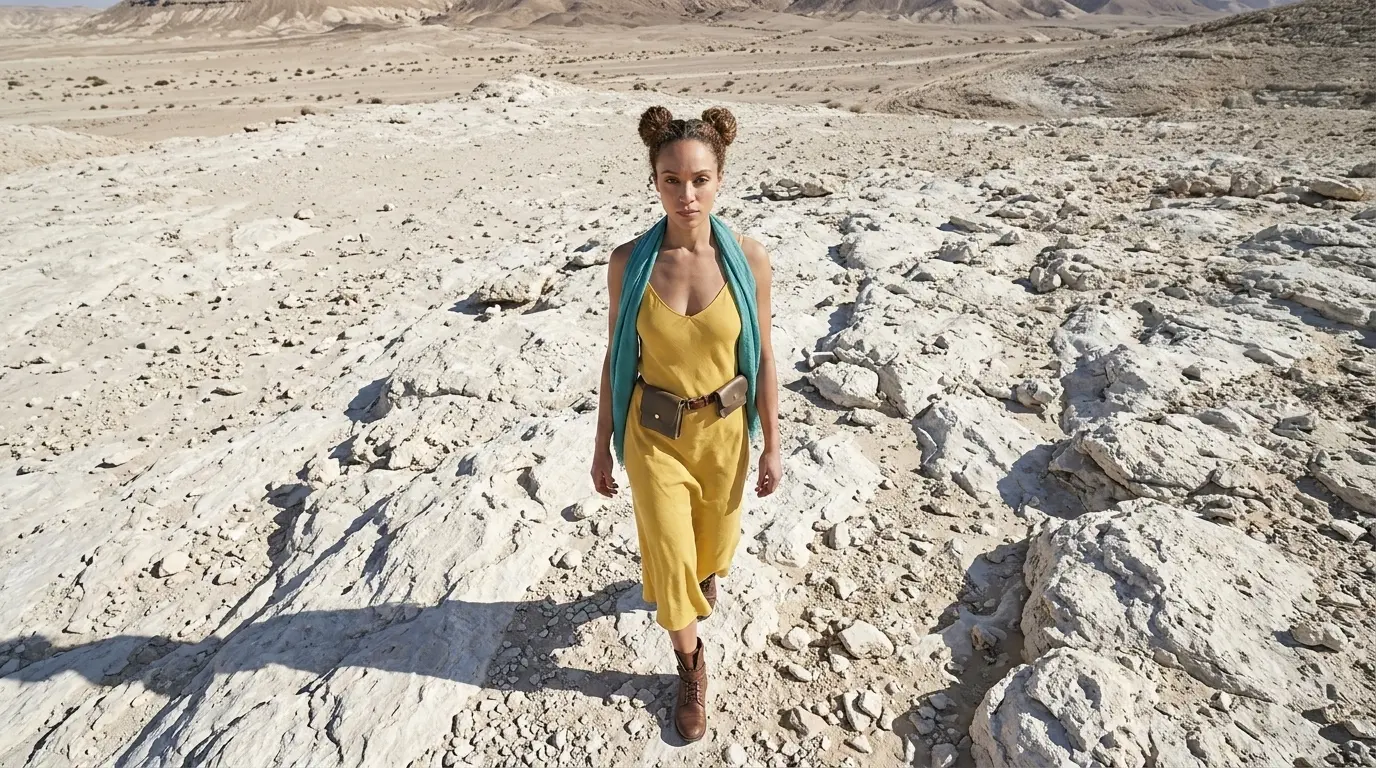
Low Angle Camera Angles in Nano Banana
Learn how to use low-angle keywords to make your characters feel heroic, brave and confident.
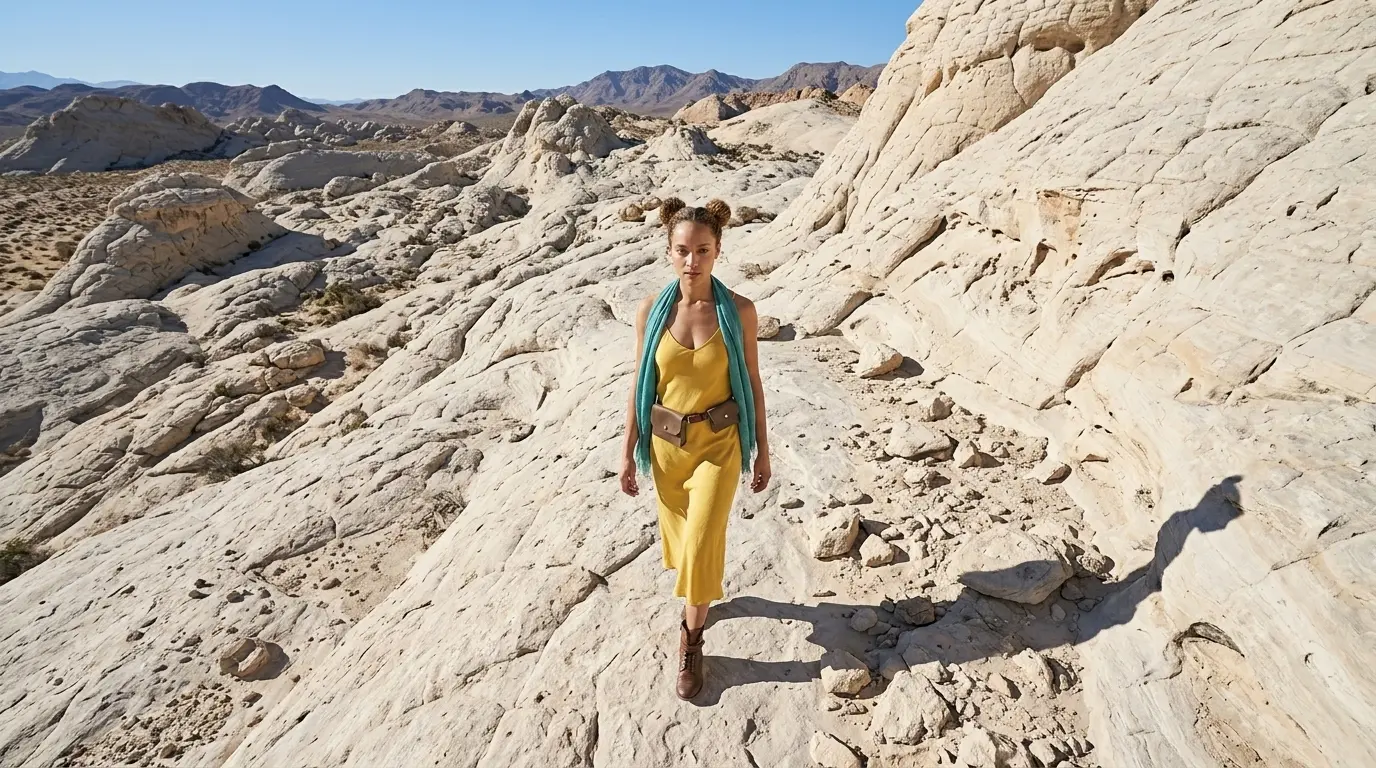
Mastering Ground-Level Framing
Learn how to lock your camera right onto the dirt for epic, low-to-the-ground action tracking shots.
Complete Guide to Camera Angles
Jump back to our full list of Nano Banana Pro prompt tutorials and cinematic camera angles.